

Drillholes
The drillhole database: import holes from CSV tables, edit their log, composite the samples, check, tabulate and section them, find ore intercepts, control the assay quality, model an ore body and write the database back to CSV. Each command has its own section; press F1 over a ribbon button, or the ? in the title bar of a command's window, to open it.
A drillhole is one object with its collar, survey readings, lithology (a rock per interval), samples (assay values per interval) and composites (samples cut into equal lengths). The lithology and the samples are separate tables, each with depths of its own.
Import Drillholes
Reads drillholes from up to four CSV, TSV or TXT tables (collars, survey, lithology, samples) and joins them by hole id. Before anything is created the window shows what the import would make, or what is wrong with the tables.
Where to find it
Geology tab → Drillholes group → Import Drillholes ("Import drillholes").
Before you start
- A collar table: one row per hole with its id and the X, Y, Z of its start. A total depth column is optional.
- Optional tables: survey (depth, azimuth, dip readings), lithology (from, to, rock) and sample table (from, to and numeric assay columns).
- Delimited text files (
.csv,.tsv,.txt). A header row names the columns.
How to
- Click Import Drillholes. The Import drillholes window opens.
- In section 1. Collars press Choose file… and pick the collar table. The columns are guessed from the header names and filled in; change any of them in its list (the first entry, "—", means none).
- Do the same for 2. Survey, 3. Lithology and 4. Sample table if you have those tables. All three are optional.
- In 4. Sample table tick the columns to keep as assays. Columns that hold numbers and are not the id or the depths start ticked.
- Check the line under the lists. When it reads "N hole(s), N lithology interval(s), N sample(s), N assay column(s)." the import is ready; any line with ⚠ is a table problem that will be skipped.
- Click Import drillholes. A message reports what was imported.
Parameters
| Section | Field | Meaning |
|---|---|---|
| 1. Collars | Hole id, X, Y, Z | Required. The import button stays off until all four are chosen. |
| 1. Collars | Total depth | Optional. A row with a depth of 0 or less counts as no depth. The hole is at least as deep as its deepest lithology or sample interval. |
| 2. Survey | Hole id, Depth, Azimuth, Dip | Optional. Without a survey a hole goes straight down. |
| 2. Survey | Dip is positive downwards | Tick if your dips are positive down. It is ticked on its own when the dips of the table are all zero or positive, with some above zero. |
| 3. Lithology | Hole id, From, To, Rock | Optional. The rock column may be left at "—": the intervals then have no rock. |
| 4. Sample table | Hole id, From, To | Optional. The depths of each sample. |
| 4. Sample table | one box per remaining column | The columns kept as assays. |
| 4. Sample table | A value below the detection limit (<0.01) is half the limit | On by default. A value written like <0.01 becomes half of 0.01. Unticked, such a value is left empty. |
The guesses read the header with case, spaces and punctuation ignored (for example HoleID, BHID, East, Easting, From, Lith, Azimuth, Dip).
What is created or changed
- One drillhole per usable collar row, on the layer Drillholes (created if it does not exist), in one undo step.
- A hole with the same name as an existing one (letters in any case) replaces it.
- Rocks named in the lithology that are not in the rock table are added to it (the Rock Types window on the Geology tab, References group).
- The new holes are coloured by rock when the lithology names rocks; otherwise by the first assay column when there are assays.
If something goes wrong
| Message | What to do |
|---|---|
| Choose the collar table first. | Pick a file in section 1. |
| Choose the columns of the hole id and of X, Y and Z. | Set all four collar columns. |
| No usable collar rows: nothing to import. | The collar table has no row with an id and numeric X, Y, Z. |
| N collar row(s) skipped: no hole id or no X, Y, Z. | Fix those rows in the file. |
| N collar row(s) skipped: the hole id came before. | A hole id repeats; only its first row is used. |
| N survey row(s) skipped: no depth, azimuth or dip. | Those readings are not numbers or the depth is negative. |
| N survey row(s) skipped: the hole is not in the collar table. | The id is missing from the collars. |
| N survey row(s) skipped: a dip beyond 90°. | Check the sign convention of the dip. |
| N lithology row(s) skipped: no depths, or the end is not below the start. | Fix From and To. The same text, with "sample", applies to the sample table. |
| N lithology row(s) skipped: the hole is not in the collar table. | The same text, with "sample", applies to the sample table. |
| N lithology interval(s) overlap the one before them. / N sample(s) overlap the one before them. | The intervals are still imported; Check Drillholes lists them as errors. |
| N value(s) below the detection limit (<…) taken as half the limit. | Information; or "left empty" when the option is off. |
What next
Check Drillholes · Composite · Drillhole Table
Edit Log
Edits the log of one selected drillhole as tables: its lithology and its samples, each with depths of its own. The composites are shown for reading only.
Where to find it
Geology tab → Drillholes group → Edit Log ("Edit log"). The button is available only when exactly one editable drillhole is selected; otherwise it says "Select one drillhole."
How to
- Select one drillhole in the 3D view and click Edit Log. The window "Log of hole name" opens.
- Work in the Lithology or Sample table tab. Type the depths into the From and To cells; pick the rock from the list in the Rock column.
- Use the buttons above the table: Add an interval (a new line starting at the deepest end so far), Delete the selected intervals (select lines first; several can be selected), and in the lithology tab Fill gaps (adds an interval, with no rock, for every stretch of the hole that has none).
- In the Sample table tab, type a name and press Add assay column to add a column. The name must not already exist.
- The Composites tab shows the composites made from the samples.
- Click Apply log.
Parameters
| Item | Meaning |
|---|---|
| From, To | Depths along the hole. To must be above From, and From not below zero. |
| Rock | A rock of the rock table, shown as "code — name"; "—" means not logged. |
| Assay columns | One numeric column per assay; an empty cell is no value. |
| Status line under a table | "N interval(s)." when the table is sound, otherwise up to four lines with ⚠. |
Apply log is off while either table has a problem. Problems shown: "Line N: From and To must be numbers.", "Line N: To must be above From, and From not below zero.", "Line N: 'text' is not a number.", "Lines N and M overlap.".
What is changed
The lithology and samples of the hole are replaced, in one undo step ("Edit log").
A change of the samples drops the composites of the hole: the Composites tab says "A change of the samples drops them: make them again with Composite." Run Composite again.
What next
Composite · Check Drillholes
Composite
Cuts the samples of drillholes into composites of equal length. Each column of a composite is the length-weighted mean of the sample values inside it.
Where to find it
Geology tab → Drillholes group → Composite ("Composite"). Available when some drillhole has samples; otherwise "No drillhole has samples."
Before you start
- Samples on the holes (see Import Drillholes or Edit Log).
- Select the holes to composite, or select none to composite all holes with samples (holes on locked layers are skipped then). A selected hole without samples is ignored; the window says "N selected hole(s)." or "No hole selected: all N hole(s) with samples."
How to
- Click Composite. The Composite samples window opens.
- Set the length and the coverage options (below).
- Read the line at the bottom: "N composite(s) in N hole(s)."
- Click Make composites.
Parameters
| Field | Meaning | Default |
|---|---|---|
| Composite length, m | The length of a composite. | 2 |
| Break at the lithology contacts | A composite never crosses a contact of the lithology: the windows start again at every contact (a rock to another, or a logged stretch to an unlogged one). Touching intervals of the same rock are no contact. | off |
| Sampled at least, % | A column of a composite gets a value only if its samples cover at least this share of the composite's length. | 50 |
| Shortest end piece, m | The shortest piece kept at the end of a run. A shorter piece is added to the composite before it (and left out if there is none). Follows half the length until you type a value of your own. | 1 |
The windows run from the top of the sampled extent in whole lengths. A window with no value in any column is not created.
If something goes wrong
| Message | What to do |
|---|---|
| The length must be positive, the share between 0 and 100 %, and the end piece not longer than the composite. | Correct the numbers. |
| About N composites: too many. Choose a longer length. | The window refuses more than 200,000 composites. |
What is changed
The composites of each chosen hole are replaced, in one undo step ("Composite samples"). The options are kept with the composites in words, for example "2 m, by lithology, at least 50 % sampled". Composites are used by Drillhole Table, Drillhole Section, Ore Intercepts and Ore Body from Samples, and exported by Export Drillholes.
Drillhole Table
Lists the lithology, the samples or the composites of all drillholes as one table to filter, sort, summarise and export. The window does not block the program and follows the project: an edit, an undo or an import shows at once.
Where to find it
Geology tab → Drillholes group → Drillhole Table ("Drillhole table"). Available when the project has drillholes; otherwise "No drillholes in the project."
How to
- Click Drillhole Table.
- Choose the table in the first list: Sample table, Composites or Lithology.
- Narrow the rows with the filters; click a column header to sort.
- Read the summary under the table.
- Click Export rows… to save the rows shown as CSV. Close closes the window.
Parameters
| Control | Meaning |
|---|---|
| First list | Which table: Sample table, Composites or Lithology. |
| Hole box | Only the holes whose name contains this text. |
| Column list | The column the limits and the summary apply to; "—" for none. Empty for the lithology, which has no value columns. |
| Two number boxes | The lowest and the highest value shown (empty: no limit). |
| Grid columns | Hole, From, To, Length, Rock, then one column per assay. |
| Summary | "N row(s), N m." and, for a chosen column, "column: N value(s) over N m, mean N, from N to N". |
A sort you chose stays when the filters change or the project changes.
What is created
Nothing is changed in the project. Export rows… writes the shown rows with the header Hole, From, To, Length, Rock and the assay columns (numbers with a point, comma-separated; the rock as its code, or its name when it has no code). A failed write gives "Could not write 'file': reason".
Check Drillholes
Checks the whole drillhole database and lists the problems, worst first. Nothing is changed. The window does not block the program.
Where to find it
Geology tab → Drillholes group → Check Drillholes ("Check drillholes"). Available when the project has drillholes.
How to
- Click Check Drillholes. The check runs at once; the summary reads "N error(s), N warning(s) in N of N hole(s)." or "No problems found in N hole(s)."
- Select lines in the list (several are possible) and click Select the holes to select those holes in the 3D view. With no line selected, the holes of all lines are selected.
- Mend the data, then click Check again.
The list has the columns Level (Error or Warning), Hole and Problem.
What is checked
| Level | Problem |
|---|---|
| Error | N holes are called name. |
| Error | Two survey readings at N m. |
| Error | Lithology, Hole samples or Composites: a–b m overlaps the interval before it. |
| Error | Lithology: N interval(s) have a rock that is not in the rock table. |
| Warning | Has no name. / Has no depth. |
| Warning | Its collar is at the origin (0, 0, 0): probably not set. |
| Warning | Starts where another hole does. (Collars less than 0.01 apart.) |
| Warning | A survey reading at N m is below the bottom of the hole (N m). |
| Warning | A bend of N° in N m between N m and N m. (More than 1° per metre.) |
| Warning | Lithology: nothing logged down to N m. / nothing logged from N m to N m. |
| Warning | Lithology: reaches N m, below the bottom of the hole; or ends at N m, above the bottom of the hole. |
| Warning | Hole samples or Composites: reaches N m, below the bottom of the hole. |
| Warning | Hole samples or Composites: N negative value(s) in column. |
What next
Edit Log to mend a log · Import Drillholes to import again (a hole of the same name is replaced).
Drillhole Section
Draws a vertical section through the drillholes: the holes near a line in plan, projected onto it, with their lithology and the values of a column beside it, over the block models and the other objects cut by the same plane. The line and its band show in the 3D view while the window is open. The window does not block the program and follows the project.
Where to find it
Geology tab → Drillholes group → Drillhole Section ("Drillhole section"). Available when the project has drillholes.
How to
- Select two or more holes if you want the line through them; with fewer than two selected the line goes through all holes (or, for a single hole, north-south through it, 200 m long). Click Drillhole Section.
- Set the line with the fields X, Y, Azimuth, °, Length, m and Half width, m, or with the buttons Through holes, From polyline and Across.
- Choose Values: the column drawn beside the lithology.
- Tick Block model and Objects to draw those cuts too.
- Step the section with ◀ and ▶, save it as a picture or a series, or keep it with the project.
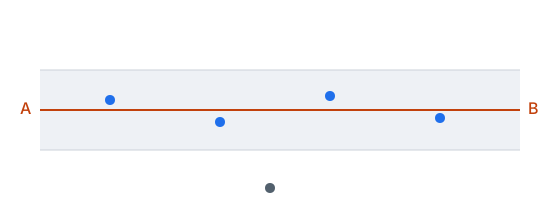
The line is marked in the 3D view with the ends A and B and a band of the half width on each side, at the height of the highest collar shown.
Parameters
| Control | Meaning |
|---|---|
| X, Y | The centre of the line (east, north). |
| Azimuth, ° | The bearing of the line from A to B, degrees clockwise from north. |
| Length, m | The length of the line. |
| Half width, m | The holes within this distance of the line each side are drawn. Starts at 25. |
| Through holes | Put the line through the selected holes (all holes when fewer than two are selected). |
| From polyline | Run the section along the selected line in plan: a section that bends at its corners. |
| Across | Turn the line a right angle about its centre. |
| Values | The values drawn beside the lithology: "(none)", a sample column, or a composite column ("name (composites)"). |
| Block model | Draw the block models cut by the section, coloured as in the view. |
| Objects | Draw the wireframes and surfaces cut by the section and the lines in its band. |
| Step, m | How far the section moves square to the line. Starts at 25. |
| ◀ / ▶ | Move the section one step to the left / right of the line. |
| Draw contour | Click points on the section; a double click or Enter ends the contour, Backspace takes a point back, Esc drops it. |
| Closed | Close a drawn contour back to its first point. |
| Show all | Fit the picture in the window. |
| Save picture… | Save the section as a PNG (1600 × 1000). |
| Each side, Save series… | Save this section and the given number of sections each side of it, one step apart, as PNG pictures in a folder, named by their offset. |
| Sections, Name, Save section, Delete | The sections kept with the project: choose one to show it; Save section keeps the current one under the name (a section of that name is replaced); Delete removes the chosen one. |
Typing the centre, bearing or length gives a straight line; changing only the half width keeps a bent line.
What is created
- A contour drawn on the section becomes a polyline of the project on the active layer, in the plane of the section (one undo step).
- Save section and Delete change the project's kept sections (undoable).
- Pictures are written to files only; the project is not changed.
If something goes wrong
| Message | What to do |
|---|---|
| Select a polyline in plan to run the section along. | Select a line object first, then press From polyline. |
| Type numbers: a length above 0, a half width not below 0. | Correct the field. |
| Type a step above 0 and from 0 to 100 sections each side. | Correct Step, m or Each side. |
| No drillholes in the project. | Import holes first. |
The status line shows "N hole(s) within N m of the line, N m long, azimuth N°." with the range of the chosen column, and "The line bends: N legs." for a bent line.
What next
Ore Intercepts · Ore Body from Samples
Ore Intercepts
Finds the ore intercepts of all drillholes: stretches at or above a cut-off grade, with a shortest length and an allowed internal waste. It recounts as you type and as the project changes. The window does not block the program.
Where to find it
Geology tab → Drillholes group → Ore Intercepts ("Ore intercepts"). Available when some drillhole has samples; otherwise "No drillhole has samples."
How to
- Click Ore Intercepts.
- Choose the Values column (a sample column, or "name (composites)").
- Type the Cut-off, Shortest, m and Internal waste up to, m.
- Read the table and the summary. Sort by any column header.
- Select rows and press Select holes to select their holes in the view (all rows when none is chosen). Export rows… saves the table as CSV.
Parameters
| Field | Meaning | Default |
|---|---|---|
| Values | The column of the samples or the composites. | first column |
| Cut-off | The lowest value of ore. | 1 |
| Shortest, m | Shorter intercepts are left out. | 2 |
| Internal waste up to, m | The longest run of lower values (and unsampled gaps, as no grade) taken inside an intercept when the whole stays at or above the cut-off. | 2 |
Table columns: Hole, From, To, Length, Mean grade, Grade × length, Internal waste, m, Intercept.
If something goes wrong
| Message | What to do |
|---|---|
| Type a cut-off, and lengths not below 0. | Correct the fields. |
| No intercept at this cut-off. | Lower the cut-off or the shortest length. |
Otherwise the summary reads "N intercept(s) in N hole(s): N m at a mean grade of N." The CSV has the header Hole, From, To, Length, Mean grade, Grade × length, Internal waste, m. Nothing in the project is changed.
What next
Drillhole Section · Ore Body from Samples
Export Drillholes
Writes the drillhole database as CSV tables into a folder you choose; the import reads them back.
Where to find it
Geology tab → Drillholes group → Export Drillholes ("Export drillholes"). Available when the project has drillholes.
How to
- Select the holes to export, or select none to export all.
- Click Export Drillholes and choose a folder.
- A message reports "N hole(s) written to N table(s) in folder."
What is written
| File | Columns |
|---|---|
| collars.csv | HoleID, X, Y, Z, Depth |
| survey.csv | HoleID, Depth, Azimuth, Dip (dip negative downwards) |
| lithology.csv | HoleID, From, To, Rock (the rock's code) |
| samples.csv | HoleID, From, To, then one column per assay |
| composites.csv | Same shape as samples.csv; written only when some hole has composites |
Numbers use a point and the files are comma-separated, UTF-8 with a byte-order mark. An empty cell is no value. Existing files with these names in the folder are overwritten. A write error is shown as a message with the system's text.
The exported survey has dips negative downwards. In Import Drillholes leave Dip is positive downwards unticked for these files.
QA/QC of Assays
Checks assays by the lab's control samples: standards on control charts, blanks against a limit, and duplicates against their originals. The window does not block the program.
Where to find it
Geology tab → Drillholes group → QA/QC of Assays ("QA/QC of assays"). The results kept with the project are shown when the window opens.
Before you start
A CSV of the control samples. Columns are found by their usual header names: a type column (STD, BLK, DUP) and a value column are required; optional are the standard's name, the expected value, the standard deviation (SD), the original sample's value (for duplicates) and the order run (otherwise the row order is used). Rows of no known type are left out and counted. A value like <0.01 is read as half the limit.
How to
- Click QA/QC of Assays and press Open results…; choose the CSV.
- In the Standards tab pick the Standard: its results are drawn in the order run, with the expected value, ±2 SD and ±3 SD lines.
- In the Blanks tab type the Limit: a blank above it is contaminated.
- In the Duplicates tab type the Tolerance, %: duplicates whose half absolute relative difference (HARD) is within it pass. The chart plots the original against the duplicate with the 1:1 line and the tolerance lines.
- To keep the results press Keep in the project; they replace the ones kept before (one undo step, "Keep QA/QC results"). The button works only for results just opened from a file.
Parameters
| Field | Meaning | Default |
|---|---|---|
| Standard | Which standard is charted. | first |
| Limit | A blank above this is contaminated. | 0.05 |
| Tolerance, % | The HARD limit for duplicates. | 10 |
Each tab has a summary: standards ("name: N result(s), mean N against N expected (bias); outside 2 SD: N, outside 3 SD (failed): N."), blanks ("N blank(s), N above limit; the highest N.") and duplicates ("N duplicate(s): share within tolerance HARD; mean HARD N.").
If something goes wrong
| Message | What to do |
|---|---|
| The table has no type or value column. | Add or rename the columns. |
| No standards. / No blanks. / No duplicates. | The file has no rows of that type. |
Ore Body from Samples
Builds a closed wireframe of the ore from the drillholes' values above a cut-off, without drawing contours (implicit modelling). Each interval, taken at its middle, is inside the body when its value is at or above the cut-off; the surface runs between inside and outside points.
Where to find it
Geology tab → Geological model group → Ore Body from Samples ("Ore body from samples"). Available when some drillhole has samples; otherwise "No drillhole has samples."
How to
- Click Ore Body from Samples. A parameter window opens.
- Set the parameters and press Build.
- The body is built in the background with a progress display ("Building the body") that you can cancel.
- A message reports "A body of N m³ from N of N interval(s) at or above N."
Parameters
| Field | Meaning | Default / range |
|---|---|---|
| Values | A sample column, or a composite column ("name (composites)"). | first |
| Cut-off | Intervals at or above it are inside. | 1 |
| Grid step | Cell size of the grid the surface is built on, m. | 5; 0.1 to 1000 |
| Smoothing | How much the surface is smoothed. | 0.05; 0 to 10 |
What is created
One mesh on the active layer, in one undo step. Only intervals with a value in the chosen column count.
If something goes wrong
| Message | What to do |
|---|---|
| No body: the samples are all on one side of the cut-off. | Choose a cut-off between the lowest and the highest values. |
What next
Ore Intercepts · Drillhole Section