

Modify
The commands that change objects that already exist: move, copy, rotate, scale and mirror them, cut and extend lines, stretch a part of a drawing, join two lines with a smooth curve, and tidy up lines. Each command has its own section; press F1 over a ribbon button to open it.
Move, Copy, Rotate, Scale and Mirror work on the objects you have selected, so select first. Objects on locked layers are left out. A command that needs a selection is dimmed until something editable is selected. While one of these tools is running, the 3D view shows a ghost of the objects that follows the pointer, a dashed guide from the last point, and a prompt at the cursor. Points can be clicked, snapped to, or typed. A lone number typed on the command line answers the current step (a distance, an angle or a factor).
Move
Moves the selected objects from a base point to a second point. The command-line aliases are m and move.
Where to find it
Home tab → Modify group → Move.
Before you start
Select the objects. Otherwise the button is dimmed with "Select the objects to move first."
How to
- Click Move. The prompt reads "Base point".
- Click the base point in the 3D view.
- The prompt changes to "Second point or distance". Click the second point, or type a distance and press Enter: the objects move that far from the base point towards the cursor.
- The objects move by the difference between the two points and stay selected. The move is one undo step (Ctrl+Z).
Esc drops the points picked so far; with no points picked it leaves the tool. Clicking the same point twice does nothing.
Copy
Copies the selected objects from a base point to one or more points. The aliases are co, cp and copy.
Where to find it
Home tab → Modify group → Copy.
How to
- Select the objects and click Copy. Click the base point.
- The prompt reads "Second point or distance (Enter to finish)". Each click (or typed distance towards the cursor) places one more copy. The base point is kept, so you can go on placing copies.
- Press Enter or Esc to finish.
Every copy is its own undo step. The copies are new objects; the originals stay where they were.
Rotate
Rotates the selected objects about a base point, in plan. The aliases are ro and rotate.
Where to find it
Home tab → Modify group → Rotate.
How to
- Select the objects and click Rotate. Click the base point (the pivot).
- The prompt reads "Rotation angle". Click a point: the angle is the direction from the base point to it, counter-clockwise from the +X axis. Or type the angle in degrees and press Enter.
- While you move the pointer, the ghost turns and a label shows the angle in degrees.
An angle of zero (or a full turn) changes nothing. The rotation is one undo step.
Scale
Scales the selected objects about a base point. The aliases are sc and scale.
Where to find it
Home tab → Modify group → Scale.
How to
- Select the objects and click Scale. Click the base point.
- The prompt reads "Scale factor or reference length point". Either:
- type the scale factor (above zero) and press Enter; or
- click a point that sets the reference length from the base point. The prompt becomes "New length point or length"; click a point, or type a length. The factor is the new length divided by the reference length, measured in plan.
- At the second click, the ghost follows the pointer and a label shows the factor (× value).
A factor of 1 changes nothing.
Meshes, block models, drillholes and blast blocks cannot be scaled; they are left as they are.
Mirror
Mirrors the selected objects across a line you set in plan. The aliases are mi and mirror.
Where to find it
Home tab → Modify group → Mirror.
How to
- Select the objects and click Mirror.
- The prompt reads "First point of mirror line". Click it.
- Click the second point. The prompt tells you what will happen to the originals: "Second point of mirror line (keep source)" or "Second point of mirror line (erase source)".
- The objects are mirrored across the vertical plane through the line.
By default the originals are kept and the mirror image is added as copies. Right-click in the 3D view and choose Erase source objects to mirror them in place instead; the menu item then reads Keep source objects.
Text keeps reading forwards. Objects that only move (meshes, block models, drillholes, blast blocks) are copied but not mirrored when you keep the source, and left unmirrored when you erase it.
Trim
Cuts away part of a polyline: you click the part to remove, and it is cut back to the nearest crossings with other objects. The aliases are tr and trim.
Where to find it
Home tab → Modify group → Trim. For a selected line the same button is on the Line tab, in the Build group.
How to
- Click Trim. Nothing needs to be selected.
- Move the pointer over a polyline. The part that would go is outlined with a dashed halo, and the prompt reads "Pick the part to trim (Enter to finish)".
- Click it. The stretch between the nearest crossings with other objects on either side of the click is removed. If there is no crossing on one side, the line is cut up to its end on that side.
- Go on clicking other parts; every click is its own undo step. Press Enter or Esc to finish.
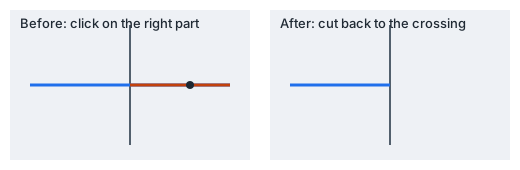
The crossings are found in plan, against all the other shown objects. On a spline the cut snaps to the nearest control point, so the remaining spline stays smooth.
Extend
Runs an end of an open polyline on in a straight line until it meets the nearest other object. The aliases are ex and extend.
Where to find it
Home tab → Modify group → Extend. For a selected line the same button is on the Line tab, in the Build group.
How to
- Click Extend.
- Move the pointer near the end you want to extend. The extension is shown with a dashed halo; the prompt reads "Pick near the end to extend (Enter to finish)".
- Click. The end moves to the nearest object ahead of it. The height of the new end follows the slope of the end segment.
- Repeat for other ends, then press Enter or Esc.
Closed lines are not extended, and nothing happens when there is no object ahead of the end. Each extension is one undo step.
Stretch
Moves a part of a drawing without breaking connections: the vertices inside a crossing window move, the rest of each line stays. The aliases are s and stretch.
Where to find it
Home tab → Modify group → Stretch.
How to
- Click Stretch. The selection is not used; the window picks the objects.
- "First corner of crossing window": click a corner. "Opposite corner": click the other one. A dashed rectangle follows the pointer.
- "Base point": click it. "Second point or distance": click the second point, or type a distance towards the cursor and press Enter. The result is previewed while you move.
If the window catches nothing, you draw the window again. Esc steps back: first out of the base point, then out of the window, then it leaves the tool. The stretch is one undo step.
What the window catches
The window is taken in plan.
- An object wholly inside the window moves as a whole.
- A polyline, spline, dimension or leader only partly inside has just the vertices inside the window moved.
- Any other object moves when its first vertex (its centre, anchor or insertion point) is inside.
- Locked, frozen and hidden objects are never caught. Handles that set a size or a direction (a circle's rim, a text's rotation) are not moved by the window.
Blend
Joins the ends of two open polylines with a smooth spline that is tangent to both. The aliases are bl and blend.
Where to find it
Home tab → Modify group → Blend. For a selected line the same button is on the Line tab, in the Build group.
How to
- Click Blend. The prompt reads "Pick near the end of the first curve".
- Click near an end of the first open polyline.
- The prompt becomes "Pick near the end of the second curve". Move the pointer over the second polyline: the spline is previewed. Click near its end.
- The spline is added. The tool then waits for the next pair; press Enter or Esc to finish (Esc first drops a first pick that was already made).
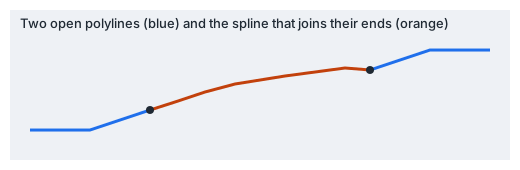
The spline leaves the first end along its end segment and arrives at the second against its end segment, and it carries the heights of both ends. It takes the layer, line style and colour of the first line. The originals stay as they are. Closed lines cannot be blended. Each blend is one undo step.
Reverse
Turns the direction of the selected polylines and splines around. The first vertex becomes the last; the line looks the same.
Where to find it
Home tab → Modify group → Reverse. For a selected line it is also on the Line tab, in the Shape group.
How to
Select the lines and click the button. The activity log says "Reversed lines: N." Other selected objects are left alone; if none of them is a polyline or a spline, the log says "None of the selected objects is a polyline or a spline." With nothing selected the button is dimmed with "Select the lines to reverse first." It is one undo step.
Simplify
Removes vertices from the selected polylines that lie within a tolerance of the line, so a dense contour keeps its shape with far fewer points.
Where to find it
Home tab → Modify group → Simplify. For a selected line it is also on the Line tab, in the Vertices group.
How to
- Select one or more polylines (with at least three vertices) and click Simplify.
- In the window, enter the Simplify tolerance in metres. The window says how many lines are selected. The default is 0.1; the last value you used is remembered while the program runs.
- Click Simplify. Cancel closes the window without changes.
Vertices closer than the tolerance to the line without them are removed. The activity log reports "Simplified lines: N; vertices A → B." The change is one undo step.
If something goes wrong
| Message | What to do |
|---|---|
| Enter a tolerance above zero. | The field must hold a number above zero; either decimal separator works. |
| None of the selected objects is a polyline with vertices to remove. | Select polylines with three or more vertices. |
| Nothing to remove within the tolerance. | Every vertex is further from the line than the tolerance. Try a larger value. |
Explode
Breaks the selected polylines, rectangles and polygons into their segments. The aliases are x and explode.
Where to find it
Home tab → Modify group → Explode. For a selected line it is also on the Line tab, in the Convert group, and for a shape on the Shape tab, in the Convert group.
How to
Select the objects and click the button. Each polyline (of three or more vertices), rectangle or polygon is replaced by two-point polylines, one per side, on the same layer with the same colour and line style. A side of no length is skipped. The pieces become the selection, together with any selected object that does not break up. It is one undo step.
The activity log says "Exploded N objects into M." If nothing can be exploded, it says "None of the selected objects can be exploded." With nothing selected the button is dimmed with "Select the objects to explode first." Single segments, curves, texts, hatches and dimensions are not exploded.