

Blast Design
The blast design commands: blocks of holes, rows, charging and the delay network. Each command has its own section; press F1 over a ribbon button, or the ? in the title bar of a command's window, to open it.
Design Block
Lays out the holes of a blast block. You describe the block (its contour, the spacing, the angle, the depth), then show in the 3D view where the grid starts and which way the rows run, and the command builds one blast block with all its holes. The layout is drawn in the 3D view while you work, so you see the holes before anything is created.
Three ways to place the holes:
- Grid over the contour: rows of holes fill the contour. The usual way.
- Along a line: one row of holes along a line you draw or pick.
- Between two lines: a row along each of two lines (the crest and the toe, say) and a grid of holes between them.
Where to find it
Blast Design tab → Grid group → Design Block. The same button is on the Blast block tab, in the Holes group.
The command opens one window that does not block the program: you can keep working in the 3D view. Running the command again brings the same window forward.
Before you start
- A block contour: any object that draws a contour. For a closed line this is the line itself; an open line is closed automatically; a mesh gives its outline; anything else gives its outline in plan. The holes go inside it. It is required for the grid and the two-lines methods.
- For holes that follow the terrain: a surface wireframe (mesh) under the contour, or crest and toe lines drawn around the block. Without either, the holes sit at the contour's own elevation.
- For "Along a line" and "Between two lines": the lines themselves. They are picked in the window.
The block is added to the active layer. If that layer is locked, the block cannot be created: make another layer active or unlock it first.
How to build a block over a contour
- Click Design Block. The window opens and the hint line says "Pick the block contour to start."
- Pick the contour: press Pick next to the Block contour box and click the object in the 3D view (the current selection is not used). The box also has a list, and Filter…, Show and Clear to find or check the object.
- Set the parameters (see the tables below). A wrong value is explained in the hint line, for example "Row count must be at least 1."; Build grid stays off until all is well. When it reads "Ready to build the grid", go on.
- Click Build grid. This does not create anything yet: it prepares the block and starts the 3D tool. The hint line tells you what to do next.
- In the 3D view, click inside the contour for the centre of the grid. Until you do, a grid that is not turned follows the pointer. A click outside the contour is ignored.
- Click again for the direction of the rows. A guide shows a north line, an arc and the azimuth in degrees; the preview turns as you move the pointer.
- Press Enter. The block is built with exactly the angle you chose.
At any time before Enter a further click starts again from a new centre, and Esc does too. Changing a parameter in the window re-plans the layout at once.
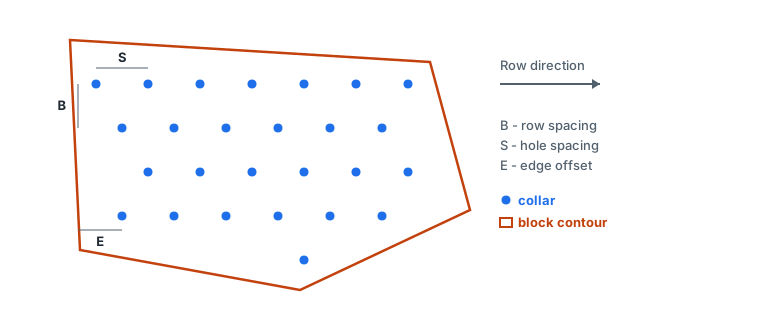
The window can stay open: change a parameter, and the layout in the 3D view follows. Closing the window also stops the 3D tool. The whole block is one undo step (Ctrl+Z).
Holes along a line, and between two lines
Choose the method in Placement method. The window then shows the lines to pick instead of (or beside) the contour: Line of holes, or First contour line and Second contour line. Pick them the same way as the contour, with Pick; a line field accepts only line objects. If you delete a line after picking it, the hint line says so and asks you to pick it again.
Along a line. One row of holes, spaced along the line from its first point. The spacing is measured in a straight line from hole to hole.
- In the 3D view press Enter to use the whole line, or click the start and then the end of a stretch of it first (the order of the clicks sets the direction). After only one click Enter does nothing.
- Spacing on a line: Passport puts holes exactly one hole spacing apart and the last one falls wherever the line ends. Evened to the ends stretches the spacing so that the last hole is on the end of the line. If the leftover at the end is more than N hole spacings (Criterion N), one more hole is added and the spacing is evened out over all of them.
- All holes are in row 1. The block outline is the contour you picked, if any.
Between two lines. Nothing to click: press Enter. Each line gets a row of holes as above, and a rigid grid with the row and hole spacing fills the area between them. The grid starts from the first hole of the first line and runs along that line's direction; a grid hole that would crowd a hole of a line row is left out. There is no edge offset. Rows are numbered from the first line, through the grid, to the second line, and the block outline is the area between the two lines.
What is created
One blast block on the active layer. Its outline is the contour (for two lines, the area between them). Every hole is created with the status Planned, with its row, its place in the row and a mark for holes added by gap filling. Its type is Production, or the type of the first rows if you set one. The block also remembers the parameters it was built with.
Rows are numbered from the left of the direction arrow, and holes in a row from the start of the arrow. A hole is named row-place, for example "3-12". If no hole comes out (the grid is too sparse, every hole is too short…), nothing is created and no message is shown.
The settings of the window are remembered between sessions. The picked contour and lines are not.
How the grid is laid out
A lattice with the row spacing across and the hole spacing along the rows is laid through the centre you clicked, turned to the direction you chose.
- Auto rows: every row that fits into the extent of the contour, on both sides of the centre. A number: the row through the centre first, then more rows on the right of the arrow, up to the count; rows that fall outside the contour are dropped, so there can be fewer.
- Staggered: every other row is shifted half a hole spacing along the row. Rectangular: the holes of neighbouring rows stand in line.
- A hole is kept if it is inside the contour and at least the edge offset from its boundary (with an offset of 0, holes on the boundary count).
- At most 20,000 holes: a grid denser than that gives an empty result.
Fill contour gaps. A complex contour leaves places the lattice misses. With this option on (and rows on Auto) holes are added there, off the lattice: first a row along every edge of the contour at the edge offset, then further passes inwards. A hole is accepted if it is inside the contour and not inside the area around any other hole (as wide as the hole spacing along the rows and the row spacing across). A new hole joins the nearest row if it is within half a row spacing of it, otherwise it starts a row of its own; all holes are then renumbered. This applies to the grid method only.
Parameters
Fields that do not apply to the chosen options are greyed out or hidden.
1. Contour and projection
| Parameter | What it does |
|---|---|
| Block contour | The object whose contour the holes go in. Pick it with Pick. |
| Elevations from | Wireframes (default): the collars are read off the surface wireframe. Lines: the collars and the floor come from crest and toe lines drawn around the block. |
| Collars at | On the wireframe or At an elevation. Available with Lines only; with Wireframes the collars are always on the wireframe. |
| Collar elevation | The elevation every collar takes. Only with At an elevation. |
| Holes down | How deep the holes go: To an elevation, Depth (default), or, with Lines, To the floor wireframe, which means down to the next line below the collars. With Wireframes only elevation and depth work. |
| Value | The floor elevation, or the depth (default 10 m) measured along the hole, not counting the subdrill. Off when the holes go down to a line. |
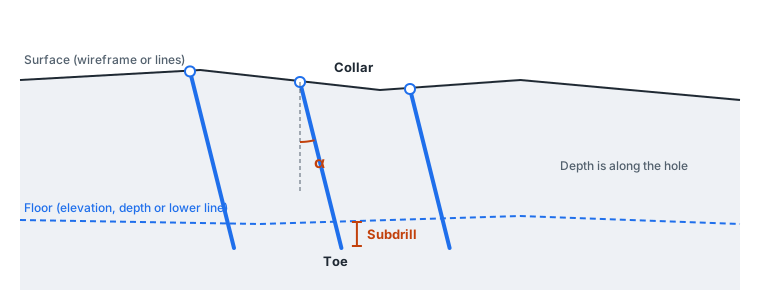
2. Placement
| Parameter | What it does |
|---|---|
| Placement method | Grid over the contour, Along a line, or Between two lines. |
| Spacing on a line | Passport (default) or Evened to the ends. For the two line methods only. |
| Criterion N | For evened spacing: a leftover at the end of at most N hole spacings is spread over the steps, a longer one gets a hole of its own. From 0.01 to 0.99, default 0.5. |
| Grid type | Rectangular (default) or Staggered. |
| Row spacing | The distance between rows, in metres, default 3.0. Must be greater than zero. |
| Hole spacing | The distance between holes along a row, default 3.5. Must be greater than zero. |
| Edge offset | The least distance from a hole to the contour, default 1.5. Not negative. Grid method only. |
| Rows | Auto (default) or A number. Grid method only. |
| Row count | The number of rows with A number, at least 1. |
3. Holes
| Parameter | What it does |
|---|---|
| Hole diameter | In millimetres, default 150. Must be greater than zero. |
| Subdrill | Drilled below the floor, in every depth mode. Default 1.0 m, not negative. |
| Hole angle α | Off the vertical, from 0° to 80°; 0 is a vertical hole. The − and + buttons change it by 0.5°. |
| Azimuth | Which way the holes lean. By value: the bearing in degrees clockwise from north (the buttons change it by 1° and wrap round). Perpendicular to rows: across the rows, toward the last row (default) or the first. |
| Minimum depth | A hole shorter than this, with the subdrill, or one whose aim is at or above its collar, is left out. Default 1.0 m. |
First rows and more options
| Parameter | What it does |
|---|---|
| Own parameters for the first rows | Off by default. The first rows (at the free face) take their own diameter, subdrill, angle, azimuth and hole type (Production, Buffer, Trim or Pre-split). Row count says how many rows from the first one; the azimuth can be "as the other holes" or a value. Not used for holes along a line. |
| Fill contour gaps | On by default; works with Auto rows (see above). |
How the collars and the floor are found
With wireframes. The command takes the visible, unfrozen meshes found under the contour and uses the first one that is no higher than the contour's mean elevation plus 1 m (otherwise the highest). Holes whose collar falls outside that mesh are left out. If there is no wireframe at all, the contour's own elevation is used.
With lines. Visible lines within 100 m of the contour are used (not meshes, not the contour itself, not lines shorter than 1 m). Each point of the contour takes the nearest line on each side and interpolates between them by distance; a point within 1 m of a line takes that line alone. The result is a surface over the block, and the collars sit on this surface, not on the lines. The floor ("To the floor wireframe") is the highest line that lies at least 0.5 m below the lower of the roof lines.
The hole. The direction of the axis comes from the angle α and the azimuth. The length is then: down to the floor surface, or (collar elevation − floor elevation) / cos α, or the depth you gave, always along the axis; the subdrill is added after that.
If something goes wrong
| Message | What to do |
|---|---|
| Pick the block contour to start. | No contour is picked yet. |
| Pick the lines the holes go along. | A line method is chosen and a line is missing. |
| That object draws no contour. / That object draws no line. | The picked object cannot give one. Pick a closed line, a mesh or a line. |
| A line the holes go along is gone: pick it again. | The picked line was deleted. |
| No lines either side of the contour: draw the crest and toe lines, or switch to wireframes. | Lines is chosen but there are no lines around the block. |
| No line lies below the collars: draw the toe line, or turn the floor projection off. | The holes go down to a line and there is none below. |
| {0} must be greater than zero. / {0} must be a number. | A field holds a wrong value. Also: edge offset, subdrill and minimum depth cannot be negative; row count at least 1; the angle between 0° and 80°; the criterion between 0.01 and 0.99. |
Holes that are left out because they are too short, point upwards or fall outside the wireframe are dropped without a message. If the result looks sparse, check the minimum depth, the angle and the wireframe under the block.
What next
- Edit the rows and holes: Insert in Row, Extend Row, Move Holes.
- Cut the block along a line: Split Block. Join blocks: Merge Blocks.
- Charge the holes: Hole Charge and Charge Holes.
Blast Animation
Plays the blast of the selected blast blocks over the model: each hole goes off at its firing time, and the thrown rock (fly rock) spreads out. It also checks which holes the blast may cut off from their signal, and whether the spread reaches the danger zones you choose. Nothing is created in the project; the picture goes away with the window.
Where to find it
Blast Design tab → Delay network group → Blast Animation. The same button is on the Blast block tab, in the Delay network group.
Before you start
- Select one or more blast blocks. With none selected the command asks you to select the blocks first.
- The blocks need a delay network (Delay Network) or connections, otherwise the holes have no firing times. The window tells you how many holes "never fire: the network does not reach them".
- For the cut-off check and the chart the holes must be charged (Charge Holes).
The window does not block the program. Run the command again with other blocks selected and the open window takes them.
How to play the blast
- Select the blocks and click Blast Animation. The first line of the window lists the blocks, the number of holes and the time the last one fires.
- Click Play. The holes light up in the 3D view in firing order. Click it again to pause.
- Use the other buttons of the player: back to the initiation (0 ms), to the previous firing, to the next firing, and to the end (all the rock down). A step moves to the next moment at which something fires or the rock lands.
- Drag the slider, or click or drag on the chart above it, to go to any moment. The blast waits where you put it.
- Choose the Speed against real time: × 1, × 0.1 (default) or × 0.01.
The text under the slider shows the time ("t = … ms") and how long is left until the blast is over, or until the rock is down.
The chart shows the explosive going off in each 8 ms window, each column of a charge at its own time. Without charges it says "No charge to show: the holes are not charged."
Parameters
Cut-off check tab
Finds holes that a neighbour may cut off before their own signal arrives.
| Parameter | What it does |
|---|---|
| Radius, m | How far round a firing hole the ground can cut the network. Empty (default): twice the larger of the burden and the spacing of each block; the value used is shown beside the field. Press Enter or leave the field to check again. |
The table lists the holes at risk: Hole no., Cut by (the neighbour), Fires, ms (when that neighbour fires) and Signal late by, ms. Click a row to jump to that moment; the hole is marked. The tab title shows the count of holes at risk.
Spread tab
| Parameter | What it does |
|---|---|
| Fly rock | On by default. Shows the rock thrown by each hole, flying no further than the fly-rock range of its block. |
| Method | How the range is worked out from the block: Safety rules, McKenzie (default) or Lundborg. |
| Range, m | Empty (default): the range from the method, shown beside the field as "auto". A number: that range is taken for every block. |
| Spread | A ring for each hole (default) or One outline round all. |
| Fill the spread | On by default. A see-through fill inside the spread, fading as it grows. |
Danger zones tab
| Parameter | What it does |
|---|---|
| Danger zones | Line objects (a polyline, an arc, a circle…) and single points, shown over the blast. Pick them with the object field; it accepts nothing else ("Only a line object or a single point can be a danger zone."). |
For each zone the tab says whether the spread reaches it, in plan: how far in and from which moment, and by which hole, or how far short it stays. A zone that is reached is drawn as reached in the 3D view. With fly rock off it says "No fly rock to check the zones against: turn it on on the Spread tab."
If something goes wrong
| Message | What to do |
|---|---|
| Select the blast blocks to play first. | No blast block is selected. |
| {n} hole(s) never fire: the network does not reach them. | Connect them: Delay Network or Connect Holes. |
| The holes are not charged: with no detonators there is nothing to check. | Charge the holes first. |
| No fly rock: its range could not be worked out for these blocks. | Type a Range, m on the Spread tab, or switch Fly rock off. |
What next
- Change the timing: Delay Network.
- Fix a hole at risk with Connect Holes.
Break Row
Splits a row in two. The hole you picked and the holes after it in its row become a row of their own, numbered next after the original; the rows of the block are then numbered again. One undo step.
Where to find it. Blast Design tab → Grid group → Break Row (the Grid tools panel). The same button is on the Blast block tab, in the Holes group.
How to.
- Pick one hole of a blast block: click the block, then the hole itself or its row in Properties.
- Click Break Row.
The button is off unless exactly one hole is picked, it belongs to a row, and it is not the first hole of that row (there is nothing to split before the first hole). To join rows again use Merge Rows.
Buffer Rows
Makes the rows of a blast block that stand nearest its wall buffer rows: their production holes become buffer holes, and they are charged with a lighter, longer-stemmed charge.
Where to find it
Blast Design tab → Wall group → Buffer Rows. The same button is on the Blast block tab, in the Wall group.
Before you start
- Select one blast block that has a wall line: draw it with Wall Line. Without one the command says "Select a blast block with a wall line first (Wall Line)."
- Charge rules and explosives in the project are used for the charge: see Charge Holes.
How to
- Select the block and click Buffer Rows.
- In the window set Buffer rows and click Apply.
| Parameter | What it does |
|---|---|
| Buffer rows | How many rows nearest the wall become buffer rows. A whole number from 0 to 10, default 1. 0 means none: buffer holes go back to production. |
The rows are ordered by the mean distance of their holes to the wall line. Production holes in the nearest rows become buffer holes; a buffer hole in any other row becomes production again. Pre-split and trim holes (see Contour Row) keep their type.
What is created
- The holes change type. The project gets, if it has none, a charge template Buffer hole (stemming 30 % longer than the block's, the rest in the block's explosive or the first explosive of the table) and a rule Buffer holes that is tried before the others. A template or rule you edited keeps your values.
- The holes the rules may charge are charged again. Holes charged by hand are left alone.
- A message reports "Buffer holes: {n}; charged again by the rules: {m}."
If something goes wrong
| Message | What to do |
|---|---|
| Select a blast block with a wall line first (Wall Line). | Select one block and draw its wall line first. |
| The buffer rows are as asked already. | Nothing to change. |
| A blast block is on a locked layer. | Unlock the layer. |
Change Log
Shows who changed the blast blocks, what and when: every change done, undone or done again. The log is kept with the project and written from the moment the program starts, whether or not the window is open.
Where to find it. Blast Design tab → Grid group → the Holes drop-down → Change Log. On the Blast block tab it is in the Holes group.
The window does not block the program and updates as the project changes. When blocks are selected, the window offers the check box Only the blocks selected to show the log of those blocks alone. Run the command again with other blocks selected and the open window takes them.
| Column | Meaning |
|---|---|
| When | The time of the change. |
| User | Who made it. |
| Block | The blast block. |
| Action | Whether it was done, undone or done again. |
| Change | What was changed. |
The columns sort on a click. Save as CSV… writes the lines shown to a file (default name change-log.csv). With no entries the window says "No changes written down yet".
| Message | What to do |
|---|---|
| The file could not be written: … | Choose another folder or file name. |
Charge Holes
Charges the holes of blast blocks by rules. A charge template says what a charge consists of (stemming, explosive, air, from the collar down); a rule says which holes get which template, by conditions on the holes' own fields. You work out the charges, check them in a table, and only then write them into the holes. A rule can also charge its holes by Auto design: the charge is worked out from each hole's rocks and water, the materials you tick and the norms.
Where to find it
Blast Design tab → Charging group → Charge Holes (the window is titled Hole charging). The same button is on the Blast block tab, in the Charging group.
Before you start
- Select the blast blocks to charge. With none selected, every block that is not on a locked layer is charged. A selection of locked blocks only charges none. If the project has no block with holes the command says "Select one blast block with holes first."
- The explosives and initiation devices the templates use are in Explosives and Initiation. Rocks, if you charge by rock, are in the project's rock table.
- If the project has no templates yet, the window makes them from the stemming and explosive the blocks already carry: one template for each distinct pair, and a rule that puts the commonest into every hole.
How to charge the holes
- Click Charge Holes. The line at the bottom says how many blocks and holes are in scope.
- On Charge templates make the templates, on Rules the rules (see below).
- Choose Charge to: The drilled depth, the design where not drilled, or The design depth. The choice is kept in each block in scope.
- Click Calculate charges. The Result tab shows what each hole would get. Nothing is written yet.
- Check the table. Fix rules or templates and calculate again as needed.
- Click Save charges. The charges are written into the holes as one undo step (Ctrl+Z). The window stays open, and the Result tab shows "Saved into {n} holes."
Calculate charges and Save charges are off when there are no holes in scope or no rules.
Rules tab
The list on the left has + (add), copy and delete. A rule that is switched off shows "(off)" after its name.
| Parameter | What it does |
|---|---|
| Name | The name of the rule. |
| Priority | A whole number. Rules are tried from the lowest priority up; rules of the same priority in the order of the list. |
| Rule is on | A rule that is off is skipped. |
| Charge | Auto design (the charge is worked out by the automatic design, see the Auto design tab) or the template the rule puts into the holes it picks. Make a template first if you need one. A rule by Auto design shows "→ Auto design" after its name in the list. |
Holes the rule picks. A list of conditions, each with a check box, a field of the hole, a comparison (=, ≠, >, ≥, <, ≤) and a value. A hole must meet every condition that is on; with no condition the rule picks every hole. Add condition adds a row (the first one reads Depth ≥ 0). The fields are the hole's own fields (type, depth and so on) and the attributes defined in Hole Attributes. Fields with a fixed set of values (and yes/no fields) offer a list of values.
For each hole the rules are tried in order. The first rule whose conditions the hole meets and whose template fits the hole wins. If the first matching rule's template does not fit (for example the stemming is longer than the hole), the next one is tried; if none fits, the hole shows the first problem. A hole charged by hand is shown as "By hand" and left as it is. A hole no rule picks shows "No rule picks this hole."
A new project starts with one rule, Others → Auto design (no conditions, priority 1000, so any rule of your own is tried first). When the window opens on a project whose rule table is empty, it offers the same rule, marked "(not saved yet)" in the list: it is written into the project when you change it or click Save charges (in the same undo step as the charges); delete it if you do not want it. A project is never changed by itself.
Charge templates tab
| Parameter | What it does |
|---|---|
| Name | The name of the template. |
| Sleeve | No sleeve, or a sleeve of the project: the charge sits in it and the explosive is weighed by its diameter. |
Elements, from the collar down. One row per element, top to bottom. For each row:
| Field | Meaning |
|---|---|
| Kind | Stemming, Explosive or Air gap. |
| What | For stemming: Bulk stemming or an inert material of the project. For an explosive: the explosive. |
| Length mode | Length, m: a fixed length. Share, %: a floating element that takes a share of what is left (the shares of floating elements always add up to 100 %). Mass, kg: a fixed mass (explosives and pieced inert materials only). |
| Value | The length, share or mass. |
| gap, m | For a cartridge explosive: the gap between cartridges. |
| min., m | For a floating element: its smallest length. |
| Lock | For a floating element: keeps its share fixed. Not every floating element can be locked. |
The buttons at the end of a row move the element up or down, copy it, or delete it. Add element adds a stemming of 1 m.
Under an explosive element: a Detonator (No detonator, or one of the project), From the top / From the bottom with an offset in metres, and the primers (No primers, or a primer, and how many, pcs, from 1 to the program's limit).
Charge by rock. For an explosive laid by length you can tick Charge by the rocks of the hole. Then for each rock of the project you choose what the column is in that rock (Stemming, Air gap or an explosive); a rock not listed keeps the layer's own explosive. min. is the thinnest stretch of one rock kept apart: a thinner stretch goes with the longer of its neighbours. Add rock adds the next rock of the project that is not listed yet.
Scheme. At the bottom a drawing of the charge in a hole of the Diameter you type (default 200 mm), with a text of what it comes to.
Auto design tab
What a rule by Auto design may use, kept between sessions, and the norms it works under: the line at the top sums the norms up, Norms… opens the Auto charge norms page of the Blast design settings. Give the holes their geology and the rocks their hardness f and blastability category.
Lists.
| Parameter | What it does |
|---|---|
| Explosives | The ticked explosives may be used, the upper ones first; move them with the arrows. |
| Initiation | The in-hole detonator and the primer of each part. |
| Inert materials | The material the decks of weak rock are stemmed with; none ticked: bulk stemming. |
How the charge is worked out.
- The stemming is k·d: k hole diameters by the hardness f of the rock at the collar.
- The rock the hole breaks, from its collar down to the bench floor, needs Q = Σ q·a·b·h of the reference explosive: a·b the block's grid, h the thickness of each rock, q by its blastability category (from f when it has none, category III when nothing is known). An explosive counts as its mass times its relative strength.
- Below the water the first ticked water-resistant explosive that fits the hole goes; above it the first ticked one that fits. A weak-rock layer thicker than the norm becomes a stemming deck splitting the charge.
- A column holding more than Q gets an air gap; the bottom part keeps the norm's share of the mass. An excess shorter than the least air gap lengthens the stemming. A column holding less is charged whole and the shortfall is said.
- Each part of the charge gets the first ticked in-hole detonator with the first ticked primer, the norm's offset above the part's bottom.
Holes charged by hand, charged in the field, fired or excluded are left as they are.
After a change of the holes' depth or dip (and of their rocks or water) the holes of an Auto design rule are charged again by the design with the materials last kept here; Hole geology, Geology by bodies, Rocks from MWD and Hole measurement say how many automatic charges no longer follow their holes.
Result tab
The summary reads "Holes charged: {n}; failed: {m}; explosive: {k} kg." One row per hole:
| Column | Meaning |
|---|---|
| Hole no. | The hole. |
| Rule | The rule that charged it. |
| Charge | Its template, or Auto design. |
| Status | Charged or Error. |
| Explosive, kg | The mass of explosive. |
| q design, kg/m³ / q actual, kg/m³ | For a hole of an Auto design rule: the specific charge its rock needs and the one its charge gives (of the reference explosive). Empty for a template. |
| Stemming, m | The stemming at the collar. |
| Remark | The remarks of the fit, or why it failed. |
Under the table:
- Charge for the selected holes + Assign: gives the picked holes the chosen template whatever the rules say. Such holes count as charged by hand.
- Hole charge…: opens the charge of the one picked hole deck by deck, see Hole Charge. A double click on the row does the same.
- The delete button in a row takes the charge out of that hole.
The holes you pick in the table are picked in the 3D view as well. On the right the hole picked is drawn in section, charged as the table has it, with why - for Auto design the reasons in full (the explosive chosen, the stemming, the decks, the air gap, a shortfall).
Import and export
The two buttons at the bottom left save all templates and rules of the project to a charge-rules.json file and take them from a file made in another project. If the file has names the project already has, you choose: Yes replaces them, No keeps the project's and adds only the new ones, Cancel imports nothing. A summary says how many were added, replaced and kept; problems are listed.
If something goes wrong
| Message | What to do |
|---|---|
| Select one blast block with holes first. | Create or select a block that has holes. |
| There is no blast block to charge. | Every block is locked or missing. |
| Make a charge template first. | Add a template on the Charge templates tab. |
| Not every floating element can be locked. | Leave at least one floating element unlocked. |
| No hole would get a charge. See the result table. | Read the Remark column: rules or templates do not fit. |
| No rule picks this hole. | Add a rule, or widen the conditions. |
| The project has no rocks: add them to the rock table first. | Needed for charging by rock. |
What next
- Look at or correct a single hole: Hole Charge.
- Charge the wall: Buffer Rows, Contour Charge.
- Then the timing: Delay Network.
Contour Charge
Charges the pre-split and trim holes of a blast block as a garland: cartridges with a gap between them that gives the linear charge you ask for, on a detonating cord, under a stemming.
Where to find it
Blast Design tab → Wall group → Contour Charge. The same button is on the Blast block tab, in the Wall group.
Before you start
- Select a blast block that has contour holes: make them with Contour Row. Otherwise the command says "Select a blast block with a contour row first (Contour Row)."
- The explosives table needs a cartridge explosive (a cartridge mass and length): see Explosives and Initiation. Without one: "The explosives table has no cartridge explosive (a cartridge mass and length) for a garland."
How to
- Select the block and click Contour Charge.
- Fill in the window and click Charge the holes.
| Parameter | What it does |
|---|---|
| Cartridge explosive | The cartridge explosive to use. |
| Charge a metre | The linear charge, kg/m, from 0.05 to 20. The default is the rule of thumb d² / 12000 (d in millimetres, the mean diameter of the contour holes); the hint shows it. |
| Stemming | The stemming at the top, m, from 0 to 10, default 1. |
| Detonating cord | none, or a detonating cord of the project (the first one is chosen when the project has any). |
The gap between cartridges is worked out as cartridge mass / linear charge − cartridge length, and not less than zero.
What is created
- The project's contour template (Contour hole (garland)) is put in or updated with these values, and rules Pre-split holes and Trim holes are added if missing, tried before the others.
- The contour holes the rules may charge are charged again. A message reports "Contour holes charged again: {n} of {m}; cartridges {x} m apart for {y} kg/m." It is shown as a warning if some holes were not charged.
| Message | What to do |
|---|---|
| A blast block is on a locked layer. | Unlock the layer. |
Contour Row
Lays a row of closely spaced pre-split or trim holes along the wall line of a blast block. The holes lean into the block at the wall's angle, and the production holes too near the new row are taken out. One undo step.
Where to find it
Blast Design tab → Wall group → Contour Row. The same button is on the Blast block tab, in the Wall group.
Before you start
Select one blast block with a wall line (Wall Line). Otherwise: "Select a blast block with a wall line first (Wall Line)."
How to
- Select the block and click Contour Row.
- Fill in the window and click Lay.
Parameters
| Parameter | What it does |
|---|---|
| Row | Pre-split (fired first) (default) or Trim (fired last). |
| Hole diameter | In mm, from 30 to 400, default 100. |
| Hole spacing | Between holes along the wall, m, from 0.2 to 10, default 1. The handbooks give ten hole diameters. |
| From the wall line | How far into the block the row stands from the wall line, m, from 0 to 20, default 0. |
| Hole angle | From the horizontal, the wall's slope, from 30° to 90°, default 90° (upright). |
| Subdrill | Below the bench floor, m, from 0 to 5, default 0. |
| Clear of production holes by | A production hole nearer the row than this is taken out, m, from 0 to 20, default 1.5. |
What is created
A new row (numbered after the last row of the block) of holes a spacing apart along the wall line, only where the block is (within one and a half grid steps of its holes). Each hole leans into the block, square to the line, down to the bench floor plus the subdrill. The holes are Planned. A message reports "Holes in the contour row: {n}; production holes taken out: {m}."
| Message | What to do |
|---|---|
| The wall line does not run along the block's holes. | The wall line is too far from the block, or the block has no holes. |
| A blast block is on a locked layer. | Unlock the layer. |
What next
Charge the row: Contour Charge. Make the rows behind it buffer rows: Buffer Rows.
Delay Network
Lays out the delay network of a blast block: which hole fires after which. Two kinds of blast: non-electric, timed by surface connectors between the holes (row by row, diagonal or V-cut), and electronic, where every hole is on one bus line and its detonator is programmed with its own delay. The network you choose is drawn over the block while you try the options, and a summary says what it would come to.
Where to find it
Blast Design tab → Delay network group → Delay Network. The same button is on the Blast block tab, in the Delay network group.
Before you start
- Select one blast block with at least 2 holes. Otherwise: "Select one blast block with at least 2 holes first."
- The connectors come from the project's table: for a non-electric blast, surface delays and cord; for the bus of an electronic blast, a connector with no delay of its own. Add them in Explosives and Initiation (tab Initiation).
The window does not block the program; you can turn the view while you try the options. The block's network is laid out anew: what it had is replaced. Holes placed by hand join the nearest row.
How to
- Select the block and click Delay Network.
- Choose the Initiation system.
- Set the pattern or the timing (see below). The 3D view and the Result text follow every change.
- Click Lay out. The network is written as one undo step. Remove network takes every connection and the initiation hole off the block.
Lay out is off while there is nothing to lay out, and the window says why: "The project has no surface connectors yet - add them in Reference tables first." or "Choose the bus line connector - one with no delay of its own."
Parameters
| Parameter | What it does |
|---|---|
| Initiation system | Non-electric: surface connectors (default) or Electronic: programmed delays. |
Non-electric: Pattern and Connectors
| Parameter | What it does |
|---|---|
| Pattern | Row by row (default): a row goes off along itself, the rows one after another. Diagonal: the holes of a diagonal go off together. V-cut: from the middle of the first row out to both ends. |
| Start at | First row (default) or Last row. |
| Row starts at | First hole of the row (default) or Last hole of the row. Off for V-cut. |
| Along a row | The connector between neighbours in a row. The default is the connector with a delay nearest 25 ms. |
| Between rows | The connector between rows. The default is the one nearest 67 ms. |
Electronic: Programmed timing
| Parameter | What it does |
|---|---|
| Timing | The shape the firing spreads in from the start: Isochrones (ms per metre) (default), Egg, Box, Diamond, Progressive (by hole and row). |
| Start at | Middle of the first row (default), First hole of the first row or Middle of the block. |
| Along the rows | Milliseconds per metre from the start along the rows; every way for isochrones. Default 5 ms/m. Off for Progressive. |
| Across the rows | Milliseconds per metre across the rows. Default 10 ms/m. For Egg, Box and Diamond only. |
| A hole along the row | The step in ms for Progressive. Default 25 ms. |
| A row | The step between rows in ms for Progressive. Default 67 ms. |
| Zones | No zones (default), Zones along X or Zones along Y: strips of the block one after another, each firing the zone delay later than the one before. |
| Zone width | m, default 20. Only with zones. |
| Zone delay | ms, default 100. Only with zones. |
| First delay | The delay of the hole the firing starts at, ms, default 0. |
| Bus line | The connector the detonators are wired with: one with no delay of its own. The default is the connector with the least delay. |
A value cannot be below zero.
Result
The text shows "Connections: {n}; blast duration: {t} ms." and "Most holes in 8 ms: …; most explosive in 8 ms: … kg." Warnings:
| Warning | Meaning |
|---|---|
| {n} hole(s) are not reached by the signal. | Some holes have no link. |
| {n} pair(s) of neighbouring holes fire less than 8 ms apart. | Neighbours fire almost together. |
| An explosive has no loading density in the reference table: its mass cannot be worked out. | Fill in the density. |
| {n} charged hole(s) have no programmable detonator: they fire after their nominal delay. | Electronic only: use a programmable detonator in the charge. |
What is created
For a non-electric blast, the connections of the block (and its initiation hole), and any programmed delays on the holes are taken off. For an electronic blast, the bus connections and the programmed delay of each hole. The settings of the window are remembered between sessions.
What next
- Change single links: Connect Holes.
- Watch the blast: Blast Animation.
Explosives and Initiation
Opens the project's reference tables of explosives and means of initiation, to look up and edit. Changes apply as soon as you leave a field; Ctrl+Z undoes them. The window does not block the program, and running the command again brings it forward.
Where to find it. Blast Design tab → Charging group → Explosives and Initiation.
Each tab has a list on the left with New, Copy and Delete, and the fields of the selected row on the right; the window says where the row is used ("Used in the project: {n}." or "Not used in the project."). Copy rows and Paste rows move rows through the clipboard to another project; Fill with defaults adds the table's default rows, leaving the ones that exist.
Explosives
| Field | Meaning |
|---|---|
| Name | No two explosives share a name. |
| Colour | Used for holes coloured by explosive and for charge sections. |
| Loading density | t/m³. The density of the charge in the hole. |
| Heat of explosion | kJ/kg. |
| Relative strength | Against Ammonite No. 6 ZhV = 1. |
| Detonation velocity | m/s. |
| Least charge diameter | mm. The smallest diameter it detonates reliably in. |
| Cartridge mass | kg. For a piece explosive; leave 0 for a bulk one. |
| Cartridge length | m. |
| Cartridge diameter | mm. A cartridge wider than the hole is refused when a charge template is put in. |
| Price per tonne | |
| Water resistant | May be loaded into a wet hole. |
Initiation
| Field | Meaning |
|---|---|
| Name | No two devices share a name. |
| Kind | Surface delay, In-hole detonator, Detonating cord or Primer. |
| Delay | ms. |
| Programmable (electronic) | An electronic in-hole detonator: its delay is programmed hole by hole; the delay above is then its greatest. |
| Scatter | ms. |
| Length | m. Detonator: how deep its wire reaches. Primer: the length of one piece. 0: not given. |
| Price per piece |
Sleeves
Name, Colour, Diameter (mm; the explosive is weighed by it when narrower than the hole) and Price per metre.
Inert materials
Materials of stemming and decks. Name, Colour, Piece mass (kg), Piece length (m; a stemming element of this material takes a whole number of pieces), Piece diameter (mm; a piece wider than the hole is refused) and Price per piece.
Cost rates
| Field | Meaning |
|---|---|
| Name | No two rates share a name. |
| Paid by | metre drilled, hole, kg of explosive, m³ of rock, tonne of rock or block. |
| Rate | What one unit of the work costs. |
| From diameter | mm. The rate is for holes this wide and wider; 0: any. |
| To diameter | mm. The rate is for holes this wide and narrower; 0: any. |
What next
Use them in charges: Charge Holes, Hole Charge, and in timing: Delay Network.
Free Face and Proximity
Checks the burden of the holes of selected blast blocks to the free face against the design burden, lets you correct the collar and angle on the spot, and lists holes that stand too near each other.
Where to find it
Blast Design tab → Grid group → the Holes drop-down → Free Face and Proximity. On the Blast block tab it is in the Holes group.
Before you start
- Select the blast blocks whose holes to check. With none selected: "Select the blast blocks whose holes to check first."
- A wireframe of the bench face as surveyed or scanned.
The window does not block the program; it follows the project, undo included. Run the command again with other blocks and the open window takes them.
How to correct holes
- Click Free Face and Proximity.
- Pick the Wireframe of the free face. Until you do, the summary reads "Choose the wireframe of the free face."
- Set the design burden, the tolerance and the face slope. The Burden table lists the holes with a verdict.
- Click Suggest to fill, for every hole that is too near or too far, the move of the collar that brings it to the design burden. Or type Move, m and Angle α, ° in the rows yourself. New burden, m and After show what the hole would come to.
- Click Apply. The holes are moved and tilted, and charged again by the rules, as one undo step.
Parameters
| Parameter | What it does |
|---|---|
| Wireframe | The mesh the face is read off. |
| Design burden | The line of least resistance the holes are held to, m. The block's burden is taken at the start. Above zero. |
| Tolerance | How far the burden may be off the design one, either way, in %. Default 20, from 0 to 100. |
| Face slope from | Triangles of the wireframe steeper than this make the face; flatter ones (bench top and floor) are left out. Default 45°, from 0 to 90. |
| Only the first row | On by default. Checks only the first row of each block. |
| Least distance between holes | Proximity tab. Two holes whose axes come nearer than this are listed. Default 1.0 m. |
The holes already fired or misfired, and holes that are excluded, are not listed.
| Burden table column | Meaning |
|---|---|
| Block, Hole no., Row | The hole. |
| Burden, m | The hole's least distance to the face now. |
| At depth, m | Where down the hole that is. |
| Verdict | Within the tolerance, Too near the face, Too far from the face or No face within reach. |
| Move, m | Move of the collar on the bench: away from the face, toward it when negative. From −50 to 50. |
| Angle α, ° | The angle off the vertical, from 0° to 80°. |
| New burden, m / After | The result of the correction. |
The Proximity tab lists pairs of holes (blocks and numbers, the distance and the depths) of the selected blocks against each other and against every block of the project.
If something goes wrong
| Message | What to do |
|---|---|
| Choose the wireframe of the free face. | Pick the wireframe. |
| Nothing to change: type a move or an angle, or press Suggest. | Fill in a correction first. |
| A move is a number from -50 to 50 m. | |
| Hole angle must be between 0° and 80°. | |
| A blast block is on a locked layer. | Unlock the layer. |
After applying, the message reads "Holes corrected: {n}." with the number charged again by the rules and the number for which no rule's charge fits.
Geology by bodies
Gives the holes of the blast blocks the rocks of the geological bodies they run through, and each block the rock in which most of its drilled length lies. One undo step for all the blocks.
Where to find it. Blast Design tab → Grid group → the Geology drop-down → Geology by bodies. On the Blast block tab it is in the Holes group.
Before you start. Define the geological bodies as closed wireframes with rocks. The command works on the selected blast blocks, or on every block that is not on a locked layer if none is selected.
How it works. For each hole, from its collar to its toe, the rocks of the bodies it passes through become its geology intervals. A stretch outside every body is in the block's rock. The block takes the rock with the most drilled length.
If holes already have geology of their own, you are asked: "{n} hole(s) already have geology of their own. Replace it with the geology read off the bodies?" Choose Yes to replace it.
The result message reads "Blocks: {n}, holes: {m}, of them in geological bodies: {k}." Bodies that could not be used are listed.
| Message | What to do |
|---|---|
| No blast block to work on: there is none, or only on locked layers. | Select a block or unlock its layer. |
| No geological body can be used: give the bodies closed wireframes and rocks first. | Prepare the bodies. |
| {n} hole(s) charged by rock no longer follow their rocks: charge them again by the rules (Charge rules). | Run Charge Holes. |
Charges laid by rock are not laid again by themselves.
For rocks by hand see Hole Geology; from drilling data see Rocks from MWD.
Hole Attributes
Lets the project define its own fields of the holes (a contractor, a hardness, a reason…), with defaults, and fill them in hole by hole or for many holes at once. The fields can be used as conditions in charge rules (Charge Holes).
Where to find it. Blast Design tab → Grid group → the Holes drop-down → Hole Attributes. On the Blast block tab it is in the Holes group.
Before you start. Select the blast blocks. With none selected: "Select the blast blocks whose holes to give attributes first." The window does not block the program; the columns follow the attributes table.
How to.
- Click Attributes… and define the attributes (see below). Close that window.
- The table has a column for each attribute. Type values into the cells, or pick holes in the table, choose an attribute in For the holes picked, type the value and click Set. An empty value gives the default again.
- Click Apply. The values are written as one undo step.
| Attributes window field | Meaning |
|---|---|
| Name | No two attributes share a name. |
| Kind | Any text, A number or Yes or no. |
| Default value | The value every hole has until it is given its own; empty: none. |
| Unit | The unit of a number, as shown. |
| Message | What to do |
|---|---|
| Define an attribute first. | Click Attributes…. |
| Pick the holes in the table first. | Select rows, then Set. |
| The value is not a value of this kind. | Type a number, or yes or no. |
| Nothing to change: type a value first. | |
| A blast block is on a locked layer. | Unlock the layer. |
Hole Charge
Edits the charge of one hole by hand, deck by deck: stemming, explosive, air gap, each with its depths, mass and detonator. The hole is drawn in section beside the decks and redrawn as you edit them. The same charge can be given to every hole of the block.
Where to find it
Blast Design tab → Charging group → Hole Charge. The same button is on the Blast block tab, in the Charging group. The charge editor also opens from the Result tab of Charge Holes.
Before you start
Pick one hole of a blast block: click the block, then the hole itself or its row in Properties. Otherwise: "Select one hole of a blast block first: click the block, then the hole's row in Properties or the hole itself."
How to
- Pick the hole and click Hole Charge.
- Optionally choose a charge construction of the reference table and click Put into the hole; its layers are laid from the collar. The decks can still be edited.
- Edit the decks: choose what fills each, type From and To, the Mass.
- Tick Every hole of the block if the same charge goes to all holes.
- Click Save charge.
Parameters
1. Charge construction
| Parameter | What it does |
|---|---|
| Charge construction | A template of the reference table, laid from the collar over this hole. |
| Sleeve | The sleeve the whole charge sits in; the explosive is weighed by its diameter. |
2. Decks
Depths are along the hole, from its collar. One row per deck:
| Field | Meaning |
|---|---|
| Filled with | Stemming, Stemming: {material}, Air gap or an explosive. Another choice replaces the filling and keeps the depths. |
| From, To | Depths in metres (step 0.5). A deck runs from a depth of 0 or more down to a greater one. |
| Mass | kg. Typed, the deck runs down as far as it takes. Off where a mass cannot be worked out. |
For an explosive deck a second line sets the in-hole detonator (none: the deck is fired by another deck), which end the offset is measured from (From the top or From the bottom), the offset in metres to the nearest primer, the primer and the number of primers (pcs) laid from the offset along the deck.
Add deck adds a deck; the delete button removes one. Without decks: "No decks: the hole is not charged." The total of explosive and stemming is shown under the list.
3. Apply to
| Parameter | What it does |
|---|---|
| Every hole of the block | Gives this charge to all holes of the block; the decks down to the toe follow each hole's own length. |
4. Keep as a template
Type a name and click Save as template to add these decks to the project's charge templates (the deck down to the toe floats over other holes). The window says "Template "{name}" is added to the charge templates."
What is changed
The hole (or every hole) gets the decks, and counts as charged by hand: the charge rules leave it as it is. One undo step.
If something goes wrong
The line under the window reports the first problem; Save charge stays off until it is gone.
| Message | What to do |
|---|---|
| A deck runs from a depth of 0 or more down to a greater one. | Fix From and To. |
| A deck goes deeper than the hole ({n} m). | Shorten it. |
| Every explosive deck needs an explosive. | Choose one. |
| Two decks fill the same stretch of the hole. | Move one. |
| The hole has wet walls, and an explosive in it is not water resistant. / The hole has water from {n} m, and an explosive below it is not water resistant. | A warning: use a water-resistant explosive. |
| An explosive has no loading density in the reference table: its mass cannot be worked out. | Fill in the density. |
| The reference table has no charge constructions yet. | Make templates in Charge Holes. |
What next
Charge many holes by rules: Charge Holes. Record what the holes really are: Hole Measurement.
Hole Depth
Sets the designed depths of the holes of selected blast blocks again: down to a wireframe, to an elevation, to one length, or rounded. The table shows the depth now and the depth the hole would get; Apply writes them and charges the holes again by the rules.
Where to find it
Blast Design tab → Grid group → Hole Depth (the Grid tools panel). On the Blast block tab it is in the Holes group.
Before you start
Select the blast blocks; with none selected: "Select the blast blocks whose holes to set the depth of first." If you picked holes in one block before running the command, the window offers Only the holes picked (on by default).
How to
- Click Hole Depth.
- Choose how to Set the depth and fill in the fields it shows.
- Check the New depth, m and Δ depth, m columns.
- Click Apply: the depths are written and the holes charged again by the rules, as one undo step.
Parameters
| Parameter | What it does |
|---|---|
| Set | To a wireframe (default): along each hole's axis to the wireframe. To an elevation. One length. Round the length. |
| Wireframe | For To a wireframe: the floor the holes go down to. |
| Elevation | For To an elevation: the elevation the toes go to, before the subdrill, m. |
| Length | For One length: the length every hole gets, m. Default 10; at most 100. |
| Subdrill | For wireframe and elevation: how far past it the toe goes, along the hole, m. Default 1.0. |
| Step | For Round the length: the step the lengths are rounded to, m. Default 0.5. |
| Round up | For Round the length. On by default; off rounds to the nearest. |
| Only the holes picked | Shown when holes were picked. |
A hole that gets no depth shows why in Result: "Choose the wireframe", "The hole does not reach the wireframe", "The elevation is not below the collar".
After applying the window reports "Depths set: {n}.", the number charged again by the rules, the number for which no rule's charge fits, and the number whose charge goes below the charging depth ("charge them again").
| Message | What to do |
|---|---|
| Nothing to change: every hole has that depth already, or gets none. | Check the mode and fields. |
| A blast block is on a locked layer. | Unlock the layer. |
Hole Measurement
Records the dip of the holes before charging: the depth found, the water level, the backfill and wet walls. You type it in a table or load it from a file; Apply writes it into the holes, charges them again by the rules and records it in the journal.
The command is titled Hole Measurement… and its window Hole measurement.
Where to find it
Blast Design tab → Charging group → Hole Measurement. The same button is on the Blast block tab, in the Charging group.
Before you start
Select the blast blocks. With none selected: "Select the blast blocks to measure first." The window does not block the program, follows the project (undo included), and takes other blocks if you run the command again.
How to
- Click Hole Measurement.
- Set the Date, Dipped by and Depth tolerance.
- Type the values in the table, or click Load file….
- To drill short holes again, pick them and click Mark for redrill.
- Click Apply. Discard forgets what was typed or loaded and not applied.
The holes the table shows are also drawn over the model.
Parameters
| Parameter | What it does |
|---|---|
| Date | The day the holes were dipped. Written with the dip and in the journal. |
| Dipped by | Who dipped the holes; written in the journal. |
| Depth tolerance | How far the dipped depth may be from the designed one, m. Default 0.5. Shallower is a short hole, deeper is backfilled. |
| Backfill a hole found deeper than designed up to the design | On by default. Works the backfill out when a depth is typed or loaded; a backfill typed in the table is kept. |
| Only the short, deep and wet holes | Shows only the holes with a deviation. |
The table:
| Column | Meaning |
|---|---|
| Block, Hole no. | The hole. |
| Design depth, m / Drilled, m | The designed and the drilled depth. |
| Measured, m | Type the depth found: a number from 0 to 100, or empty. |
| Δ depth, m | Measured minus design. |
| Water, m | The water level from the collar. |
| Backfill, m | Cuttings put back at the bottom. |
| Wet walls / Dewatered | Check boxes. |
| Charging depth, m | The depth the charge can go to. |
| Redrill | Marked for redrilling. |
| Result | Not dipped, Within tolerance, Short by {x} m, Deep by {x} m (with the backfill), plus "wet". |
The dip file
Load file… reads a delimited text file (.csv, .txt) with a header row. The columns are Hole; Depth; Water; Backfill; WetWalls; Dewatered; Date. Only Hole and one other column are needed; a column the file does not have leaves that value as it is, and an empty cell in a column it has clears the value. A flag is yes for 1, yes, true, +, x. The column names in Russian are understood too. After loading, the window says "Holes taken from the file: {n}. Press Apply to write them." and lists lines it could not use.
If something goes wrong
| Message | What to do |
|---|---|
| Nothing to apply: type the dip in the table or load a dip file first. | |
| The file is empty. | |
| The dip file needs a header row with a Hole column and a Depth, Water, Backfill, WetWalls or Dewatered column: … | Add the header row. |
| line {n}: no hole '{name}' / several holes go by the number '{name}' | Check the hole number in that line. |
| line {n}: '{x}' is not a number / is not yes or no / is not a date | Fix the cell. |
| A depth is a number from 0 to 100 m, or empty. | |
| A tolerance is a number, zero or more. | |
| The holes entered are no longer in the blocks. | The blocks changed; type again. |
| A blast block is on a locked layer. | Unlock the layer. |
After Apply the message reads "Holes measured: {n}." with the number charged again by the rules, the number for which no rule's charge fits, and the number whose charge goes below the charging depth.
What next
Charge the holes: Charge Holes. Set designed depths again: Hole Depth.
Hole Geology
Sets the rocks that one hole passes through, as intervals along the hole: from a depth, to a depth, a rock. You can give the same intervals to every hole of the block.
Where to find it
Blast Design tab → Grid group → Hole Geology… (in the Geology drop-down). The same button is on the Blast block tab, in the Holes group. It is also in the right-click menu of a single picked hole, as Geology….
Before you start
- Pick one hole of a blast block: click the block, then the hole's grip in the 3D view or the hole's row in Properties. The block must not be on a locked layer.
- The rocks come from the project's rock table. If it is empty the window says "The project has no rocks yet - add them in Reference tables first."
How to
- Pick the hole and click Hole Geology. The window Hole geology opens and says "Hole {name}, {depth} m deep. Depths are along the hole, from its collar."
- Press the + button (tooltip "Add interval"). A new interval starts where the last one ends and runs down to the hole's depth (at least 1 m long), in the rock of the interval above it. Without intervals the first one starts at 0 and takes the rock you used last time, or the first rock of the table.
- Set From and To in metres and choose the Rock.
- To remove an interval press its delete button ("Remove the interval"). With no intervals the hole is in its block's rock all the way down.
- To give the same intervals to all holes of the block, tick Every hole of the block.
- Click Save geology. The change is one undo step (Ctrl+Z).
Parameters
| Parameter | What it does |
|---|---|
| From, To | Depths along the hole, from its collar, in metres. An interval runs from 0 or more down to a greater depth. |
| Rock | One of the project's rocks. Every interval needs one. |
| Every hole of the block | Off by default (the last choice is remembered). On: all holes of the block get these intervals instead of their own, not only the picked hole. |
If something goes wrong
The line at the bottom of the window explains why Save geology is off.
| Message | What to do |
|---|---|
| An interval runs from a depth of 0 or more down to a greater one. | Make To greater than From, and From not negative. |
| Every interval needs a rock. | Choose a rock for each interval. |
| Two intervals cover the same stretch of the hole. | Move the intervals apart. |
| Select one hole of a blast block first: click the block, then the hole's row in Properties or the hole itself. | No single hole is picked. |
If some holes are charged by rock and their rocks have just changed, a message says "{n} hole(s) charged by rock no longer follow their rocks: charge them again by the rules (Charge rules)." The charges are not recalculated by themselves.
What next
- Set rocks for many holes at once from the bodies of the geological model: Geology by bodies; or from the drilling energy: Rocks from MWD.
- Charge the holes: Hole Charge, Charge Holes.
Rocks from MWD
Tells the rock along each hole from the energy of drilling that the rig recorded (MWD, measurement while drilling) and gives it to the holes as their geology. You set classes: "from this energy up, this rock".
Where to find it
Blast Design tab → Grid group → Rocks from MWD… (in the Geology drop-down). The same button is on the Blast block tab, in the Holes group.
Before you start
- Select one or more blast blocks. With none selected the command says "Select the blast blocks whose holes to give rocks from MWD first."
- The holes need MWD data with the energy of drilling. Without it the window says "No hole of the blocks has MWD with the energy of drilling: load it first."
- The project needs rocks in its rock table.
The window does not block the program. Running the command again with another selection hands the new blocks to the open window.
How to
- Select the blocks and click Rocks from MWD. The line under the explanation tells how many holes have MWD and the range of the energy, in MJ/m³.
- In the table give each class the energy it starts from (Energy from, MJ/m³) and its Rock. The first class starts at 0 with the first rock of the table. Add class adds a class that starts 100 above the highest one.
- Click Apply. The message below says how many holes were given rocks. Close leaves the window.
How the rocks are told
- Each interval of the hole's MWD goes to the class with the greatest start that is not above the interval's energy.
- An interval with no energy, or with an energy below every class, is left out: the block's own rock applies there.
- Neighbouring intervals of the same rock are joined into one.
- Only holes that have MWD with an energy above zero are changed; their geology is replaced. All blocks are one undo step.
- The classes are remembered (by the rock's code) for the next time.
If something goes wrong
| Message | What to do |
|---|---|
| Give at least one class a rock. | No class has a rock. |
| Nothing to change: the holes have these rocks already, or no MWD. | Nothing differs from what the holes already have. |
| A blast block is on a locked layer. | Unlock the layer. |
After applying, holes charged by rock may be reported: "{n} hole(s) charged by rock no longer follow their rocks: charge them again by the rules (Charge rules)."
What next
Charge the holes by the new rocks: Charge Holes. Edit one hole by hand: Hole Geology.
Renumber Holes
Gives the holes of the selected block new numbers: by row and place ("3-12") or as one running number. It changes only the numbers people read (the hole names), nothing else.
Where to find it
Blast Design tab → Grid group → Renumber Holes… (in the Holes drop-down). The same button is on the Blast block tab, in the Holes group.
Before you start
Select one blast block with holes. Otherwise the command says "Select one blast block with holes first."
How to
- Select the block and click Renumber Holes. The window Renumber holes opens.
- Set the parameters. The line at the bottom previews the result: "Holes: {count} · " and the first three numbers, then the last one.
- Click Renumber. The numbers change in one undo step. Cancel changes nothing.
Parameters
| Parameter | What it does |
|---|---|
| Numbering | Row and place (3-12) (default) or One running number. |
| Prefix | Text put in front of every number, such as a block or bench code. Up to 16 characters, may be empty. |
| First number | Where a running number starts (default 1, not negative). Only with One running number; rows and places always count from 1. |
| Row order | From the first row (default) or From the last row. |
| Holes in a row | As laid out (default), Against the layout, or Back and forth (snake): every other row is counted against the layout, the path a drill rig walks. |
What the result looks like
Rows and places are counted afresh from 1, so the gap left by a deleted hole closes. Holes that are in no row (placed by hand) come last, in the order of the list: they continue the running number, or are numbered as row 0. The settings are remembered once you confirm.
If a field holds a wrong value the button is off and the line says "Correct the fields marked red".
What next
Merge Rows and Break Row change the rows but keep the numbers; renumber afterwards.
Select Row
Picks every hole in the rows of the holes picked now. Useful before Move Holes, Merge Rows or Delete.
- Where: Blast Design tab → Grid group → Select Row; Blast block tab → Holes group; or Select row in the right-click menu of picked holes.
- Before you start: pick one or more holes (a grip, a window over the grips, or rows in Properties). The command is off otherwise.
- A hole that is in no row (placed by hand) stays picked alone.
Merge Rows
Makes the rows of the picked holes one row. The first of those rows takes the holes of the others; the holes count their places along it afresh, and the rows of the block are numbered again 1, 2, 3 in the order they had. The holes keep their numbers; use Renumber Holes to number them again. One undo step.
- Where: Blast Design tab → Grid group → Merge Rows; Blast block tab → Holes group; or Merge rows in the right-click menu of picked holes of two or more rows.
- Before you start: pick holes from at least two different rows. Otherwise the command is off.
Merge Blocks
Makes the selected blast blocks one block. The first block you selected keeps its settings and number and takes in the holes, delay networks and journals of the others.
Where to find it
Blast Design tab → Grid group → Merge Blocks. The same button is on the Blast block tab, in the Holes group.
How to
- Select two or more blast blocks, none on a locked layer (a locked one is not counted). The first selected is the main one.
- Click Merge Blocks. The blocks are replaced by one block, which becomes the selection. One undo step.
What the new block has
- Holes of the other blocks get new internal ids; a hole keeps its number unless that number is taken, then it gets a free one. Their rows are numbered after the rows of the first block.
- The outline is the union of the contours. If the blocks lie apart the outline is the hull around them all, and the message says "The blocks lie apart: the merged block's contour is the hull around them all."
- Delay-network tracks of the other blocks come along; the network start is the first block's.
If something goes wrong
"A blast block is on a locked layer." Unlock the layer. The command is off with fewer than two unlocked blocks selected.
Split Block
Cuts one blast block along a line into separate blocks, each with only its own holes.
Where to find it
Blast Design tab → Grid group → Split Block. The same button is on the Blast block tab, in the Holes group.
Before you start
Select one blast block (not on a locked layer). To cut along an existing line, select a line object together with the block. Otherwise the command message says "Select one blast block first (not on a locked layer), with a line to cut it along or without one to draw it."
How to
With a line selected: click Split Block. The block is cut along that line at once.
To draw the line:
- Select only the block and click Split Block.
- In the 3D view click the points of the cutting line (object snaps work). The line is shown as you go.
- Backspace takes the last point back.
- Press Enter (or double-click) with two points or more to cut. Esc ends the tool without cutting.
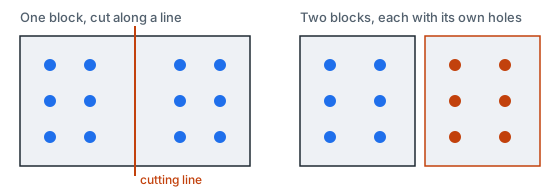
What is created
The block is replaced by its parts in one undo step, and the parts become the selection. Each part is a copy of the block (settings, journal, calculation data) with only its own holes. The first part keeps the block's number, the others get "-2", "-3" added to it. The footprint is the contour, or for a block without one the hull of its holes. A hole on the cut goes to the nearer piece. Tracks of the delay network that lie on one side stay; the message says "The block is cut into {n} blocks." and, if links were cut, "Links of the delay network cut: {m}."
If something goes wrong
| Message | What to do |
|---|---|
| The line does not part the block's holes: draw it across the block. | The line leaves all holes on one side. |
| A blast block is on a locked layer. | Unlock the layer. |
What next
Join blocks again with Merge Blocks. Rebuild the delay network of a part: Delay Network.
Wall Line
Gives the selected blast blocks the pit wall they are fired against: the wall's line, the zone along it where the blast is held back, a limit on the explosive there, and how long before the block the pre-split row fires.
Where to find it
Blast Design tab → Wall group → Wall Line. The same button is on the Blast block tab, in the Wall group.
Before you start
- Select the blast blocks and, with them, the polyline of the wall (the first selected line object with two points or more is used). The line is copied into each block.
- To only change the numbers of a wall that is already set, or to take it away, select the blocks alone.
Messages: "Select the blast blocks and the polyline of the wall first." (no blocks selected); "Select the polyline of the wall with the blocks." (no polyline and no wall set yet).
How to
- Select the blocks and the wall polyline and click Wall Line. A window with the title Wall Line opens; if a block already has a wall its numbers are shown.
- Set the parameters and click Apply. One undo step; every selected block gets the wall.
Parameters
| Parameter | What it does |
|---|---|
| Zone along the wall | How far from the wall line, into the block, the blast is held back. Metres, 0 to 500, default 15. |
| Most explosive in 8 ms in the zone | Limit on the explosive that fires within 8 ms in the zone. Kilograms, 0 to 100000; zero means no limit (default). |
| Pre-split fires before the block by | How long before the block the pre-split row fires. Milliseconds, 0 to 10000, default 100. |
| Wall | Only when no polyline is selected: Keep it (default) or Take it away. |
If something goes wrong
"A blast block is on a locked layer." Unlock the layer and run the command again.
Copy Hole
Duplicates the picked hole one hole spacing along the grid direction. The new hole is made the way the Add and Insert row buttons in Properties make a hole, and becomes the picked hole.
- Where: Blast block tab → Holes group → Copy hole, or Copy in the right-click menu of a picked hole.
- Before you start: pick exactly one hole of an unlocked blast block (a grip, or its row in Properties). The command is off otherwise.
- One undo step ("Duplicate hole"). To copy several holes or to put the copy where you want, use Move Holes with Shift or Ctrl.
Delete Hole
Removes the picked holes from their block. The rows count their places again, and the delay network is cut where it passed the removed holes. One undo step.
- Where: Blast block tab → Holes group → Delete hole, or Delete in the right-click menu of picked holes.
- Before you start: pick one or more holes of an unlocked blast block. To pick a whole row use Select Row. The command is off otherwise.
- The hole numbers are not changed; Renumber Holes closes the gaps.
Add Hole
Places holes into the selected blast block one by one, click by click.
Where to find it
Blast Design tab → Grid group → Add Hole. The same button is on the Blast block tab, in the Holes group.
Before you start
Select one blast block, not on a locked layer. Otherwise the command says "Select one blast block first (not on a locked layer): the holes are added to the selected block."
How to
- Select the block and click Add Hole. No window opens.
- In the 3D view click where each collar goes. Each click adds one hole and is its own undo step. A preview follows the pointer: the hole's line, its collar, and the distance from the nearest hole.
- Press Enter (or double-click) to leave the tool. Esc ends the current block: the next click starts a new block on the active layer. The right-click menu offers Finish and Start a new block.
What the new hole is like
- It copies the nearest hole of the block: diameter, azimuth, dip, depth, and also its charge, type, row and value. The first hole of a new block (after Esc) is vertical, with the initial diameter and depth.
- The collar lies on the wireframe under the pointer (the highest visible one). Without one it takes the elevation of the nearest hole.
- A click on a locked block is ignored.
For exact grids use Design Block; to put a hole in a row use Insert in Row.
Insert in Row
Puts a hole into a row of the block between two neighbouring holes. Each click adds one hole.
Where to find it
Blast Design tab → Grid group → Insert in Row. The same button is on the Blast block tab, in the Holes group.
Before you start
Select one blast block (or a hole of it), not on a locked layer. Otherwise: "Select one blast block first (not on a locked layer): the holes are put into its rows."
How to
- Click Insert in Row.
- Move the pointer next to a row, between two of its holes. The nearest row is found if its line passes within half the block's row spacing of the pointer; a preview of the new hole is shown. Nothing is shown if no row is near, or if the pointer is before the first or past the last hole of the row.
- Click. The hole is put midway between the two holes. A click with Shift or Ctrl puts it under the pointer on the row's line. Each click is its own undo step.
- Press Enter or Esc to end.
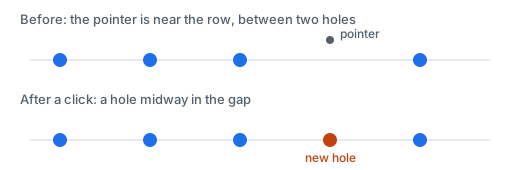
The new hole is made like the hole before it, takes its place in the row and a free number. Its collar lies on the wireframe there, or else halfway between the neighbours' elevations.
Extend Row
Carries a row on past one of its ends, a row step apart, adding as many holes as you point to or type.
Where to find it
Blast Design tab → Grid group → Extend Row. The same button is on the Blast block tab, in the Holes group.
Before you start
Pick a hole of the row in an unlocked block (a hole placed by hand is in no row). Otherwise: "Pick a hole of the row to extend first (a hole placed by hand is in no row)."
How to
- Pick a hole of the row and click Extend Row.
- Move the pointer past an end of the row. The end nearer the pointer is used: past the last hole if the pointer is beyond the middle of the row, else before the first. The preview shows the holes that would stand, and "+N".
- Click to add them, one undo step. As many whole steps as reach the pointer are added (at least one).
- Or type a whole number from 1 to 1000 to add that many holes at that end, and press Enter as usual in the 3D view.
- The tool stays on for more. Press Enter or Esc to end.
The step is the average distance between neighbouring holes of the row. Each new hole is made like the end hole it continues from and takes its place in the row; its collar lies on the wireframe there, else at the end hole's elevation.
Move Holes
Moves the picked holes of a block, or copies them. All the holes move the same way in plan; each collar goes onto the wireframe at its new place (or keeps its elevation if there is none).
Where to find it
Blast Design tab → Grid group → Move Holes. The same button is on the Blast block tab, in the Holes group; also Move holes in the right-click menu of picked holes.
Before you start
Pick the holes to move: their grips, a window over the grips, or a whole row with Select Row. Otherwise: "Pick the holes to move first: their grips, or a row with Select Row."
How to
- Click Move Holes.
- Click a base point. Object snaps work. A preview shows the holes at their new place, a dashed line and the distance in metres.
- Click the target point to move the holes. A click with Shift or Ctrl makes copies instead.
- Instead of the second click you can type the offset as
@dx,dy, or a distance, which moves the holes that far along the way from the base point to the pointer (a move only). - The tool ends after one move. One undo step.
A copy is a new hole of the block, made like the one it copies, with a free number. The copies of a row make a new row of their own, numbered after the last row of the block. The copies become the picked holes.
Connect Holes
Joins the holes of the selected block into delay tracks by hand. You sweep the cursor along a row, and the holes it passes join the track.
Where to find it
Blast Design tab → Delay network group → Connect Holes. The same button is on the Blast block tab, in the Delay network group.
Before you start
Select one blast block with at least two holes. Otherwise: "Select one blast block with at least 2 holes first." A locked block ends the tool.
How to
- Click Connect Holes. The window Connect holes opens beside the 3D view and the hint "Click the hole to start from" follows the pointer. In the window, New tracks chooses the connector for tracks you draw now. The list holds the surface delays and the detonating cord of the reference table. A track that continues an existing one keeps that one's connector.
- Click the hole a track starts from (the pointer must be close to the collar).
- Move the cursor along the row. The holes it passes join the path; the preview shows the connector and the number of holes. Going back over the hole before the last takes the last one off.
- Do one of:
- Click a hole: the path ends there and the links are laid.
- Press Enter: the holes ahead are added with the same step (the preview says "Enter: {n} more holes ahead") and the track is laid. The chain stands at the last hole, ready to sweep on.
- After a track the chain stands at its last hole. Click another hole to link it with one link and go on from it; click the same hole again to start a sweep from it; a click on a hole that is not the end of a track starts a branch.
- Esc ends the chain (the next click starts another). Enter with no track under way, or Finish in the right-click menu, leaves the tool; closing the window ends the tool too.
Right-click menu: Continue the track ahead, Initiate here, End the chain, Finish.
Click or sweep along a track that is already laid and it is taken off ("click: disconnect" is shown). Each laid or removed track is one undo step ("Connect holes" or "Disconnect holes").
What is created
Tracks named "Track 1", "Track 2" and so on, each laid with the connector chosen. If the block has no initiation hole yet, it is initiated at the hole the first track starts from; Initiate here in the right-click menu sets it at the hole the chain stands at. The connector for a new track is, if you chose none, the one the block's tracks use most, else the surface delay nearest to 25 ms (not the 0 ms one). The one you pick is remembered by name.
How the holes ahead are guessed
From the last two holes of the path, the same step is repeated; the next hole is the one near the predicted place (within 0.4 of the step), also along a slow bend. The guess stops at a turn sharper than 35°, where no hole is near, or at a hole that already has a way to it, the initiation hole or an excluded hole.
What next
Review delays and times: Delay Network; play the firing: Blast Animation.