

Wireframes
Builds, checks, repairs and cuts wireframes: meshes made of triangles, either open surfaces (a terrain, a design surface) or closed solids. It also measures them and combines solids with Boolean operations.
Most commands work on the selected mesh. They are on the Wireframes tab; when a mesh is selected, the same buttons also appear on the Mesh contextual tab. Every command is one undo step.
Most commands end with a short message (for example the number of triangles). A mesh on a locked layer cannot be changed: the command says "The mesh is on a locked layer." If the geometry library fails on a degenerate mesh, you see "The operation failed on this mesh" with the reason instead of a crash. Parameter windows end with Cancel and the command's main button.
Mesh report
Shows the triangle count, surface area, volume and centroid of every selected mesh, and totals when several are selected.
Where to find it
Wireframes tab → Analysis group → Mesh report; also Tools tab → Measure group, and the Mesh tab.
How to
- Select one or more meshes.
- Click Mesh report. A short report opens as a message, a long one in a window with Copy and Close.
For an open surface the volume is shown as "— (not a closed solid)". With nothing selected: "Select one or more surface or wireframe meshes."
Check mesh
Checks the topology of one mesh and tells you which command fixes what it finds.
Where to find it
Wireframes tab → Analysis group → Check mesh.
How to
- Select one mesh.
- Click Check mesh. The report lists: Vertices, Triangles, Connected parts, Closed solid, Open edges, Holes (open loops), Non-manifold triangles (a third on one edge), Bow-tie vertices, Degenerate triangles, Duplicate triangles, and, for a closed mesh, Faces outward.
- The last line is either "The mesh is a clean closed solid." or "Suggested: …", a chain of commands such as Remove duplicate triangles → Weld edges → Fill holes → Orient normals → Auto repair.
If more or fewer than one mesh is selected: "Select one mesh."
What next: Remove duplicate triangles · Weld edges · Fill holes · Orient normals · Auto repair
Self-intersections
Finds where the selected mesh passes through itself and draws a red line at each place.
Where to find it
Wireframes tab → Analysis group → Self-intersections.
How to
- Select one mesh.
- Click Self-intersections.
- The lines are added on the layer Mesh check. If there are none: "The mesh does not pass through itself."
What next: Rebuild as solid absorbs self-intersections.
Union
Combines two closed solids into one that contains everything inside either of them.
Where to find it
Wireframes tab → Boolean group → Union.
Before you start
- Exactly two meshes selected, both closed solids on unlocked layers.
How to
- Select the two solids.
- Click Union.
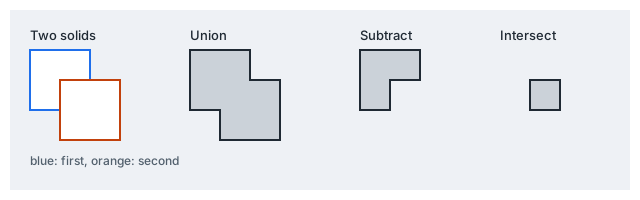
The two solids are replaced by one mesh on the first solid's layer, with its look. If the result is not closed, you are told how many open edges it has: run Auto repair or Weld edges on it.
If something goes wrong
| Message | What to do |
|---|---|
| Select exactly two meshes to combine. | Select two meshes. |
| The mesh is on a locked layer. | Unlock the layer. |
| Both meshes must be closed solids to combine: an open surface has no inside. | Close the mesh first, for example with Fill holes or Auto repair. |
| The boolean result is empty. | The solids give no volume for this operation. |
Subtract
Cuts the second selected solid out of the first. The first solid is the one cut from.
Where to find it
Wireframes tab → Boolean group → Subtract.
How to
- Select the two solids, the one to cut from first.
- Click Subtract.
The requirements, the result and the messages are the same as for Union.
Intersect
Keeps only what lies inside both selected solids.
Where to find it
Wireframes tab → Boolean group → Intersect.
How to
Select two closed solids and click Intersect. The requirements, the result and the messages are the same as for Union.
Surface from points
Triangulates the selected points, lines and meshes into a surface (a DTM).
Where to find it
Wireframes tab → Build group → Surface from points; also Point tab → Build group.
Before you start
- Select at least three points or strings (lines). Points are taken from point objects, the vertices of lines (with their values), the shapes other line-like objects draw, and the vertices of meshes. Texts and other objects are ignored.
How to
- Select the points, lines or meshes.
- Click Surface from points. It runs in the background with progress and can be cancelled.
- The surface is added on the layer Surfaces and selected.
Points at the same place in plan are one vertex of the surface whatever their height; the repeats are left out and counted in the final message ("… point(s) at a place already taken were left out.").
If something goes wrong
| Message | What to do |
|---|---|
| Select at least three points or strings to triangulate. | Select more objects. |
| The selected points are collinear or coincident — no surface. | Select points that do not lie on one line. |
| The surface was not made: … | The reason follows the colon. |
Tube along line
Builds a closed tube of a given radius along each selected line.
Where to find it
Wireframes tab → Build group → Tube along line.
How to
- Select one or more lines.
- Click Tube along line, fill in the window and click Build tubes.
| Parameter | Meaning | Default / range |
|---|---|---|
| Radius | Radius of the tube, m | 2; 0.001 to 1 000 000 |
| Sides of the section | Number of sides of the cross-section (whole number) | 16; 3 to 128 |
The tubes are added on the layer Wireframes. If a line is too short: "The lines are too short to build along."
Extrude outline
Fills each selected closed outline and extrudes it straight up or down into a closed solid, for example a stockpile footprint or a bench block. Every vertex of the outline keeps its own elevation at the base.
Where to find it
Wireframes tab → Build group → Extrude outline.
How to
- Select one or more closed outlines.
- Click Extrude outline, enter Height (negative: down) (m, default 10) and click Extrude.
The solids are added on the layer Wireframes. If nothing can be built: "No closed outline with an area to extrude."
Reduce
Reduces the number of triangles of the mesh while keeping its shape (quadric error).
Where to find it
Wireframes tab → Edit group → Reduce.
How to
- Select one mesh.
- Click Reduce. The window shows "Triangles now: N."
- Set the parameters and click Reduce.
| Parameter | Meaning | Default / range |
|---|---|---|
| Triangles to keep | Share of triangles kept, % | 50; 1 to 99 |
| Keep the open edge as it is | The border of an open surface is not moved | on |
The message shows the triangle count before and after.
Remesh
Rebuilds the mesh with even triangles of a given edge length.
Where to find it
Wireframes tab → Edit group → Remesh.
How to
- Select one mesh.
- Click Remesh. The window shows the "Average edge now".
- Set the parameters and click Remesh.
| Parameter | Meaning | Default / range |
|---|---|---|
| Edge length | Target edge length, m | the current average edge; 0.0001 to 1 000 000 |
| Passes | Number of passes (whole number) | 10; 1 to 100 |
| Keep the open edge as it is | The border is not moved | on |
If the edge length would give more triangles than allowed, the window comes back with "That edge length would make more than N triangles — choose a longer one."
Smooth
Smooths the mesh (Laplacian), optionally holding its open edge still.
Where to find it
Wireframes tab → Edit group → Smooth.
How to
Select one mesh, click Smooth, set the parameters and click Smooth.
| Parameter | Meaning | Default / range |
|---|---|---|
| Rounds | Number of smoothing rounds (whole number) | 5; 1 to 200 |
| Strength (0–1) | Strength of each round | 0.5; 0.01 to 1 |
| Keep the open edge as it is | The border is not moved | on |
Fill holes
Fills the holes of the mesh.
Where to find it
Wireframes tab → Edit group → Fill holes.
How to
Select one mesh, click Fill holes, set the parameters and click Fill holes.
| Parameter | Meaning | Default |
|---|---|---|
| Fill | Minimal surface, Smooth patch or Fan to the centre | Minimal surface |
| Leave the outer edge open (a surface) | The outer border of an open surface is left open | on |
The message is "Filled holes: N of M." If there are none: "The mesh has no holes to fill."
Offset
Grows or shrinks a closed solid by a distance all round.
Where to find it
Wireframes tab → Edit group → Offset.
Before you start
- A closed solid. Otherwise: "Offset needs a closed solid: an open surface has no inside."
How to
Select the solid, click Offset, set the parameters and click Offset.
| Parameter | Meaning | Default / range |
|---|---|---|
| Distance (negative: shrink) | Offset distance, m | 1; -1 000 000 to 1 000 000 |
| Cell size | Size of the working grid, m. A smaller cell keeps more detail and takes longer | about 1/150 of the solid's diagonal; 0.0001 to 1 000 000 |
If the cell is too small, the window comes back with "That cell is too small for this solid — choose a larger one."
Auto repair
Repairs a solid in one step: removes degenerate and lone triangles, orients every part consistently, closes cracks and fills the remaining holes.
Where to find it
Wireframes tab → Repair group → Auto repair.
How to
Select one mesh, click Auto repair, set Tolerance (m, default 0.001, 0 to 10) and click Repair. The message shows the open edges before and after.
An open surface comes out capped.
Weld edges
Welds open edges that lie on one another into one.
Where to find it
Wireframes tab → Repair group → Weld edges.
How to
Select one mesh, click Weld edges, set Tolerance (m, default 0.001, 0 to 10) and click Weld. The message shows the open edges before and after.
Remove duplicate triangles
Removes triangles that repeat another one.
Where to find it
Wireframes tab → Repair group → Remove duplicate triangles.
How to
Select one mesh, click Remove duplicate triangles, set Tolerance (m, default 0.001, 0 to 10) and click Remove. If none are found: "No duplicate triangles found."
Split into parts
Splits the mesh into its connected parts, each a mesh of its own.
Where to find it
Wireframes tab → Repair group → Split into parts.
How to
Select one mesh and click Split into parts. The mesh is replaced by its parts. If it is in one piece: "The mesh is in one piece."
Flip normals
Turns every triangle over, so the normals point the other way.
Where to find it
Wireframes tab → Repair group → Flip normals.
How to
Select one mesh and click Flip normals. There are no parameters.
Orient normals
Makes the triangles face one way throughout, outward.
Where to find it
Wireframes tab → Repair group → Orient normals.
How to
Select one mesh and click Orient normals. There are no parameters. To turn a mesh the other way use Flip normals.
Remove small parts
Removes the loose pieces smaller than a given area; the largest piece stays.
Where to find it
Wireframes tab → Repair group → Remove small parts.
How to
Select one mesh and click Remove small parts. The window shows the mesh's surface area. Set Smaller than (m², default 1% of the surface) and click Remove. If no piece is that small: "No part is smaller than this."
Rebuild as solid
Rebuilds the mesh as one clean closed solid, absorbing overlaps, self-intersections and gaps smaller than a cell.
Where to find it
Wireframes tab → Repair group → Rebuild as solid.
How to
Select one mesh, click Rebuild as solid, set Cell size (m; default about 1/150 of the diagonal; 0.0001 to 1 000 000) and click Rebuild. A smaller cell keeps more detail and takes longer. If the cell is too small: "That cell is too small for this solid — choose a larger one."
Remove interior faces
Removes the faces that lie inside the solid the rest of the mesh encloses.
Where to find it
Wireframes tab → Repair group → Remove interior faces.
How to
Select one mesh and click Remove interior faces. The message is "Removed faces: N." or "No face lies inside the mesh."
Thicken surface
Turns an open surface into a closed solid of a given thickness.
Where to find it
Wireframes tab → Edit group → Thicken surface.
How to
Select an open surface, click Thicken surface, set the parameters and click Thicken.
| Parameter | Meaning | Default |
|---|---|---|
| Thickness (negative: down) | Thickness, m | 1 |
| Direction | Vertical or Along the normals | Vertical |
A closed mesh cannot be thickened: "The mesh is already closed: select an open surface."
Cut at elevation
Cuts the mesh at an elevation, such as a bench floor, keeping the part above or below.
Where to find it
Wireframes tab → Sections group → Cut at elevation.
How to
Select one mesh and click Cut at elevation. The window shows the mesh's elevation range. Set the parameters and click Cut.
| Parameter | Meaning | Default |
|---|---|---|
| Elevation | Cutting level, m | the middle of the mesh |
| Keep | Above the elevation or Below the elevation | Above |
| Close the cut with a flat cap | Closes the cut with a flat face | on |
Section along line
Sections the selected meshes along the selected lines drawn in plan: where each mesh crosses the vertical plane through a line, polylines are added.
Where to find it
Wireframes tab → Sections group → Section along line.
How to
- Select the meshes and the lines to section along.
- Click Section along line. There are no parameters.
- The section lines are added on the layer Sections. If the lines miss the meshes: "The lines do not cross the meshes."
Otherwise: "Select the meshes to section and the lines to section them along."
Contours
Adds contour lines of the selected surfaces at a chosen interval.
Where to find it
Wireframes tab → Sections group → Contours.
How to
Select one or more meshes, click Contours, set the parameters and click Add contours.
| Parameter | Meaning | Default / range |
|---|---|---|
| Interval | Elevation step, m | 5; 0.01 to 100 000 |
| Base level | Elevation the levels are counted from, m | 0 |
The contours are polylines on the layer Contours. More than 5000 levels is refused: "That interval is too small for the surface — choose a larger one." If the surface is lower than one interval: "The surface spans less than one contour interval."
Cut by plane
Cuts the mesh by a plane given as a point, a dip azimuth and a dip angle, keeping one part or both.
Where to find it
Wireframes tab → Sections group → Cut by plane.
How to
Select one mesh, click Cut by plane, set the parameters and click Cut.
| Parameter | Meaning | Default / range |
|---|---|---|
| Point X, Point Y, Point Z | A point on the plane, m | the centre of the mesh |
| Dip azimuth | Compass direction the plane falls towards, ° | 0; 0 to 360 |
| Dip | Angle of the plane, ° (90° vertical, 0° horizontal) | 90; 0 to 90 |
| Keep | Above the plane, Below the plane or Both parts | Both parts |
| Close the cut with a flat cap | Closes the cut with a flat face | on |
With Both parts the mesh is replaced by two meshes.
Clip by outline
Clips a surface along a closed outline drawn in plan, such as a licence boundary or a pit limit, keeping what lies inside or outside.
Where to find it
Wireframes tab → Sections group → Clip by outline.
How to
- Select one surface and one outline (a line with at least three points; it is closed if need be).
- Click Clip by outline, choose Keep: Inside the outline (default) or Outside the outline, and click Clip.
Otherwise: "Select one surface and one closed outline."
Volume between surfaces
Calculates the volume between two surfaces: where the first is above the second and where it is below.
Where to find it
Wireframes tab → Analysis group → Volume between surfaces.
How to
- Select exactly two surfaces: the first is the ground, the second the design.
- Click Volume between surfaces, set Grid cell (m; default about 1/300 of the larger extent; 0.01 to 100 000) and click Calculate. Both surfaces are read from above on a grid of this cell; a finer grid is slower and more exact.
- The report gives: Area compared, First above second (cut), Second above first (fill), Net (cut minus fill).
If the surfaces do not overlap in plan: "The surfaces do not overlap in plan."
Split by slope
Splits a surface into the part no steeper than an angle and the steeper part.
Where to find it
Wireframes tab → Analysis group → Split by slope.
How to
Select one surface, click Split by slope, set Slope angle (°, default 45, 0.1 to 89.9; measured from the horizontal) and click Split. The surface is replaced by two meshes, the flat and the steep one. If all of it is on one side: "The whole surface lies on one side of this angle."
Link contours
Joins the closed contours of a body drawn on a series of sections into a closed wireframe.
Where to find it
Geology tab → Geological model group → Link contours.
How to
- Select two or more closed contours (lines of at least three points).
- Click Link contours; the window shows "Contours selected: N."
- Tick or clear Close the ends (on by default) and click Link.
The wireframe is added on the layer Wireframes; the contours stay. If the contours are all at one place: "The contours are all at one place: nothing to link."
Pit design
Designs an open pit upward from a floor outline: benches, berms and a ramp up to a top elevation.
Where to find it
Geology tab → Open pit group → Pit design.
How to
- Select the closed outline of the pit floor.
- Click Pit design. The window notes the floor elevation (the average of its vertices).
- Set the parameters and click Design.
| Parameter | Meaning | Default / range |
|---|---|---|
| Bench height | m | 10; 0.5 to 100 |
| Face angle | ° | 65; 15 to 89 |
| Berm width | m | 6; 0 to 200 |
| Top elevation | m | floor + 100 |
| Ramp width (0: none) | m | 15; 0 to 100 |
| Ramp gradient, % | % | 10; 1 to 30 |
The toes, crests and ramp lines and the pit surface are added on the layer Pit design. The message gives the number of benches, the top elevation and the volume dug out. If the floor has no area or the top is not above it: "No pit: the floor has no area, or the top is not above it." Without a closed outline: "Select the closed outline of the pit floor."